Client sent me an 80MB "interactive" PDF last week. Two weeks of her life in it. Video on the cover, seven buttons, a rollover gallery on page four. Looked gorgeous in InDesign. Took forty seconds to open in Acrobat and hard-crashed Chrome's built-in viewer entirely. Unsend that, please.
That's InDesign and interactivity for you. Real tools — hyperlinks, buttons, page transitions, embedded media — and none of them warn you when you're building something that only works in one piece of software, on one device, assuming the recipient has more patience than most people have left. Let's skip the fluff: InDesign is a layout tool, not a delivery truck. Stop treating export like a distribution strategy.
Set the document up like it's going flat, not digital-first
Start in InDesign the same way you'd start a print brochure, because that discipline actually helps you later. File > New Document, set your page size to match whatever the final format is — A4, US Letter, a custom trifold width, doesn't matter — and turn on facing pages if you want spreads instead of single panels. Set your bleed to 3mm minimum even though you might never print this thing, because bleed forces you to keep important content away from edges, and edge content is the first thing that gets cropped weirdly when a brochure gets viewed on an odd aspect ratio screen later.
CMYK if it's hitting a trade show table. RGB if it's staying on screens. Pick one before you place a single image — I've fixed brochures where half the images were CMYK TIFFs and half were RGB JPEGs, and the color mismatch between pages was invisible on the designer's calibrated monitor and glaring on everyone else's laptop.
The Hyperlinks panel is the one feature worth actually learning
Window > Interactive > Hyperlinks is the panel that matters most. Select any text or object, hit the chain-link icon, turn it into a live link — a URL, an email address, another page in the document, or a text anchor placed elsewhere. That last one is what makes a table of contents actually function instead of just looking like one. Set anchors on each section's opening page (Type > Hyperlinks & Cross-References > New Hyperlink Destination), link your contents entries to them, and a 24-page brochure gets real internal navigation instead of forcing someone to scroll past everything to find the pricing page.
Most people fail here quietly, because InDesign builds hyperlinks that look perfect in the panel and vanish on export if you pick the wrong preset. Choose a standard "print" PDF instead of Interactive and every link is gone — no warning, nothing. I've had a client call confused about why her buttons "disappeared." That preset, every time.
Turn Your PDFs into Lead Generation Machines
Start getting highly-qualified leads from your PDFs and landing pages today. It takes exactly 2 minutes to set up.
No credit card required • Sign up in 10 seconds
Buttons and Forms: use two, not twelve
The Buttons and Forms panel, same Interactive submenu, is where InDesign lets you turn any object into a clickable action — jump to a page, open a URL, play embedded video or audio, show and hide layers. It's genuinely powerful and genuinely easy to overuse. I watched that 80MB brochure end up with seven separate buttons, three of which did nearly identical things, because the designer got excited about the feature and kept adding "interactive" elements without asking whether any single one earned its place.
You get two buttons. Max. One "next section" arrow, one "buy/contact" CTA. Everything else is decoration that bloats your file and confuses the poor soul pinching-to-zoom on their iPhone.
Skip the page-turn animation, it's a trap worth knowing about
InDesign lets you set page transitions — dissolve, page turn, wipe — under the Page Transitions panel, and it's tempting to think that's how you get the flip-page effect people picture with a digital brochure. It isn't. Transitions only render inside Adobe Acrobat or Reader specifically. Open the same PDF in Chrome, Preview, or any mobile browser, and the setting does nothing — pages just switch instantly, flat, like it was never there. I built a whole set of transitions into a product-launch brochure once and watched it fall completely flat on every device that mattered, because almost nobody opens PDFs in Acrobat anymore.
If the page-turn look matters — and for a brochure it usually should, since it's the thing that makes something feel like a real document instead of a static file — that effect needs to come from somewhere other than InDesign's export.
Export without wrecking the file size
File > Export, choose Adobe PDF (Interactive) — this is where that 80MB disaster gets born or avoided. The image compression setting defaults to something reasonable, but if you've placed 300dpi print TIFFs throughout, export will bake all that resolution into a file meant for a phone screen that couldn't display half those pixels anyway. Drop compression to 150–200 PPI for anything digital-only. Compress video before it goes into InDesign, too — InDesign doesn't touch video weight on export, it just carries it straight through.
A brochure that needs to load fast on 4G standing outside a shop should land under 5MB, ideally closer to 2. Clearing 15 or 20MB means something in your image or video handling needs a second look.
Turn Your PDFs into Lead Generation Machines
Start getting highly-qualified leads from your PDFs and landing pages today. It takes exactly 2 minutes to set up.
No credit card required • Sign up in 10 seconds
Where InDesign actually stops and something else needs to start
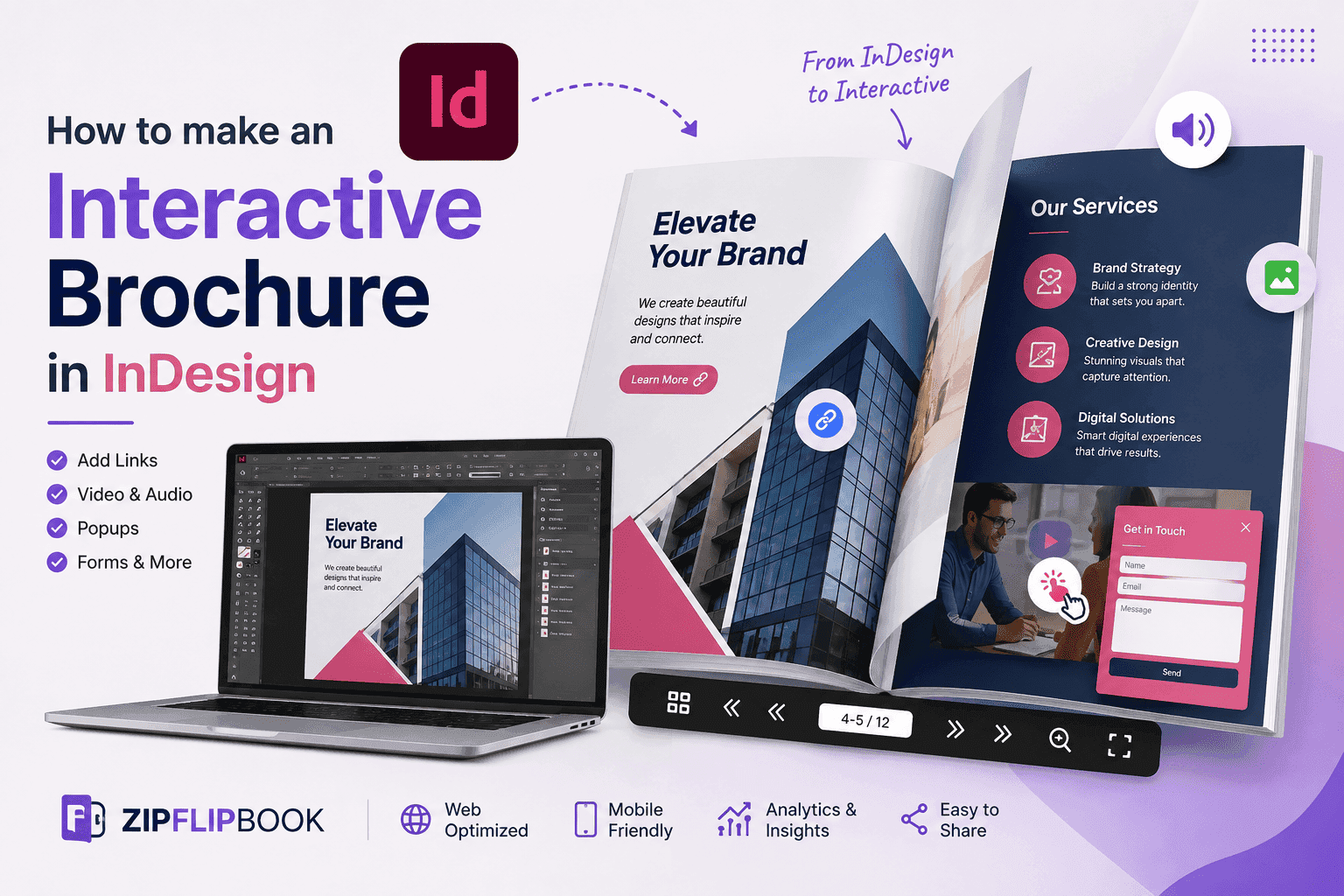
Everything above gets you a well-designed, properly linked PDF, and that's genuinely most of the work — the part that takes real design skill and can't be faked. But here's the cold truth: even after all that, you've just got a heavy PDF begging for a download. That's not interactive. That's a chore. It doesn't give you a shareable link, doesn't track who opened which page or how long they sat on your pricing section, and the page-flip animation only shows up in Acrobat, which by now is basically nobody outside a design studio.
What most people actually want when they say "interactive brochure" is that InDesign file turned into something with a real URL, that flips properly on any device without an app, and that tells you afterward whether anyone looked at it. InDesign was never built to finish that job.
My workaround? Export the PDF, throw it into ZipFlipbook — it's free — and send a link instead of a file. Keeps every hyperlink and button you already built, gives you the page-turn that actually works in a browser, takes less time than refilling your mug. Done.
The design work is still the hard part, and InDesign is still the right tool for it. Just don't expect the export button to also be your distribution strategy — that's the step where most "interactive" brochures quietly go to die in someone's downloads folder, unopened.