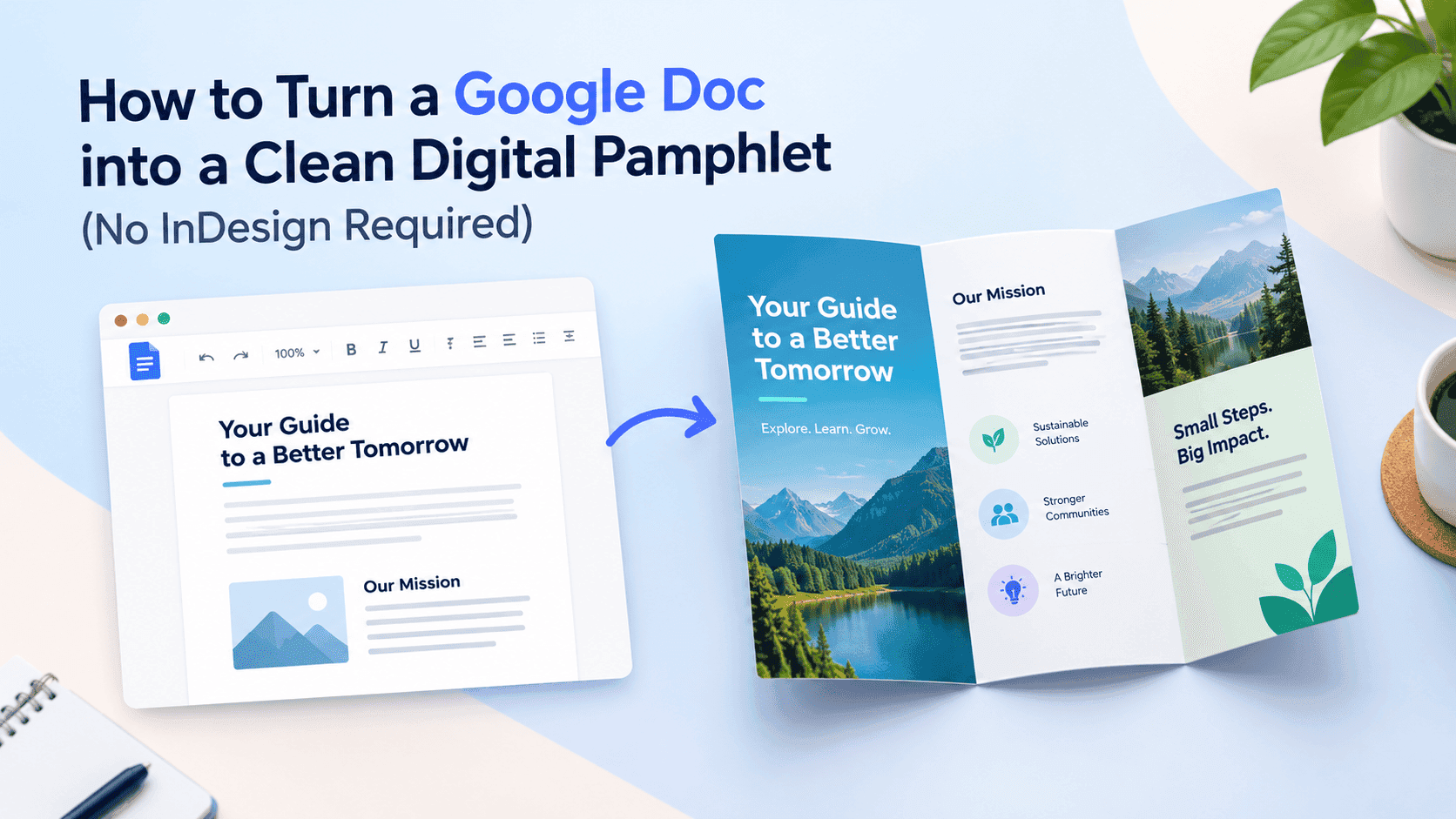
Search for a google docs pamphlet template and you get a template, a "Use this template" button, and not much else. That works until you type your own content over the placeholder text. Three paragraphs in, the columns spill onto the wrong page, a photo sits on top of a heading, and what you built looks like a staff memo with ambitions.
None of that is Google Docs' fault, and you don't need InDesign or a Canva login to avoid it. A teacher putting together a unit guide, a student with a project handout, a plumber who wants a clear explainer to leave with customers: all of them can make something tidy with menus that are already in front of them. Page setup, columns and section breaks do most of the work, and they're the parts templates tend to hide.
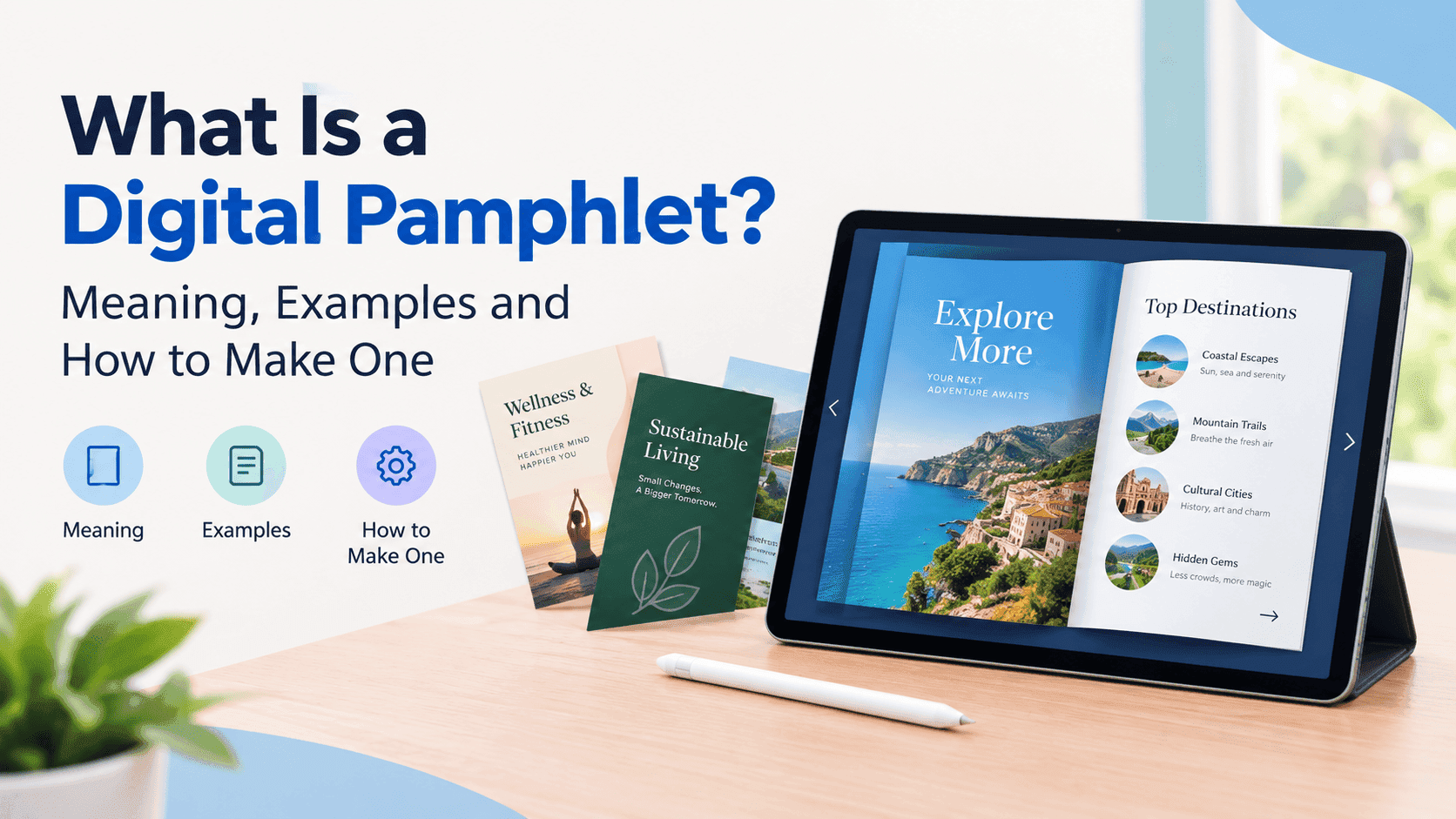
The second half matters as much as the first. A pamphlet that lives as a Google Docs link or an email attachment gets opened once, pinched and zoomed on a phone, and forgotten. Convert the Google Doc to a digital pamphlet with page turns and your own branding, and people treat it like a publication. If the format is new to you, this explainer on what a digital pamphlet is covers the basics.
How to make a pamphlet on Google Docs: set up the page first
Open a blank document and go to File > Page setup before you type anything. The default is a portrait page with one-inch margins on every side, which is the shape of a letter to your landlord. A pamphlet needs tighter margins and a decision about orientation.
Drop all four margins to 0.6 inches. If you plan to print double-sided, add a little extra on the inside edge, but for screen reading it doesn't matter. Thinner margins buy you room for two columns without the text getting squeezed into narrow strips.
Landscape suits a bifold feel, where each page reads like one face of a folded sheet. Portrait is better for a guide with longer text, such as a school handout or a how-to with step photos. Pick one and keep it for the whole file. Paper size is Letter in the US and A4 almost everywhere else. The finished pamphlet will live on screens, but somebody will print it eventually, so match what your readers' printers expect.
One more check in the same dialog. Docs now has a Pageless format, and in pageless mode columns and page breaks stop behaving the way you need. Make sure the Pages tab is selected.
Decide the page count now too. Four, six or eight. An even number gives you a front cover, a back cover and clean spreads in between when the file becomes a flipbook. An odd number leaves one page hanging with nothing opposite it.
Turn Your PDFs into Lead Generation Machines
Start getting highly-qualified leads from your PDFs and landing pages today. It takes exactly 2 minutes to set up.
No credit card required • Sign up in 10 seconds
Two columns and section breaks in Google Docs
Columns are under Format > Columns. Choose two. Everything in the document flips to two columns at once, including your cover, which is the first thing people get wrong. A cover with a title squashed into the left half of the page is the quickest way to make a pamphlet look amateur.
Section breaks solve it. Put your cursor at the end of the cover content and choose Insert > Break > Section break (next page). Now the document has two sections. Click inside the second one, set Format > Columns > Two, and the cover stays full-width. Click back into the cover and nothing changes there.
The other option is a continuous section break, found in the same menu. It switches layout in the middle of a page without starting a new one. Use it when you want a full-width heading band across the top of an inside page with two columns of text underneath. Insert a continuous break after the heading, then apply columns to the part below. You'll see a faint dotted line where each break sits.
Two habits keep columns sane. First, never push text across with the Enter key. If you want a paragraph to start at the top of the right-hand column, use Insert > Break > Column break. Press Enter fourteen times and the next edit sends your text into a different column entirely. Second, open Format > Columns > More options and set the spacing yourself. The default gap is 0.5 inches, which looks wide. Around 0.3 to 0.4 inches reads better, and the "line between columns" tick box adds a thin rule that makes a text-heavy page feel organised.
It helps to know your column width, because you'll need it for images. On Letter in landscape with 0.6-inch margins and a 0.4-inch gap, each column is about 4.7 inches wide. On Letter in portrait with the same margins, it's about 3.4 inches. A4 lands within a few hundredths of an inch of those numbers.
Fix the fonts so it stops looking like an office memo
Most homemade pamphlets fail on type, not layout. The usual culprits are Arial at 12 points, bold used for emphasis on every third line, and headings that are the same size as the body with a different colour.
Use two fonts at most, one for headings and one for body text. A serif body with a sans-serif heading is dependable: Merriweather or Lora for the text, Montserrat or Open Sans for headings. All four are in the Docs font menu, and all four survive PDF export without substitution.
For sizes, set body text between 10 and 11 points. Narrow columns with 12-point type produce short ragged lines and a lot of awkward breaks. Headings go at 18 to 22 points, section subheads at 13 or 14. Set line spacing to 1.15 and use "space after paragraph" of 6 points instead of blank lines between paragraphs. Blank lines break the moment you resize anything.
Leave the text left-aligned. Justified text in a column under four inches wide opens up big gaps between words, and Docs has no hyphenation to rescue it.
Do this once through Styles rather than formatting each heading by hand. Format a paragraph the way you want Heading 1 to look, then go to Format > Paragraph styles > Heading 1 > Update 'Heading 1' to match. Repeat for Heading 2 and Normal text. Then use Options > Save as my default styles, and the next pamphlet you start inherits all of it. Pick one accent colour for headings, enter it as a hex code under Text colour > Custom, and use it nowhere else except a callout box or two.
Images and text wrapping that behave
This is where the memo look usually comes back. Docs gives you three ways to place an image: In line, Wrap text, and Break text. Each one has a catch.
In line treats the picture like a very large character. It's stable, it moves with the text and it never lands on top of a heading. For anything the width of a column, use In line, and drag the corner handle until the picture matches the column width you worked out earlier. A photo that's 4.7 inches wide fits a landscape column exactly and aligns with the text edge.
Wrap text lets text flow around a picture, which suits small images, like a headshot or a product thumbnail. Click the image and choose Wrap text, then set the margin from text to around 0.1 or 0.15 inches. Below that the words touch the picture. Above it you get a gap that looks like a mistake. Leave the position option on "Move with text" and not "Fix position on page," because you'll be editing and fixed images stay behind while the paragraph moves away from them.
Break text keeps lines above and below the image and nothing beside it. It's useful for a wide image that spans a section, and it's the least fragile of the floating options.
Compress images before you insert them. A phone photo is three to six megabytes. Drop ten of them into a document and you've got a 40 MB PDF that stalls on mobile data. Resize them to around 1,600 pixels on the long edge first, and the exported PDF will come out in the low single digits.
For a cover, there's a trick that avoids the Drawing tool. Insert a one-cell table (Insert > Table), stretch it to full width, and shade the cell with your brand colour through Table properties > Cell background color. Type the title in white, at 30 or 36 points, inside the cell. You get a solid colour band that stays put when you edit, and it costs you two minutes. The same trick, in a pale tint, makes a respectable callout box for tips, warnings or a contact block on the back page.
Caption photos at 9 points in italic, and only when the caption says something the picture doesn't.
Turn Your PDFs into Lead Generation Machines
Start getting highly-qualified leads from your PDFs and landing pages today. It takes exactly 2 minutes to set up.
No credit card required • Sign up in 10 seconds
Structure it like a pamphlet, not a document
A pamphlet gets read by people standing in a corridor or scrolling on a train. Short sections, one idea per spread, and a first line that tells people whether to keep going. Put the problem or promise on the cover, in one sentence under the title. Use the inside pages for the content in chunks of two or three paragraphs, each under its own heading. Reserve the back page for contact details, a link and, if you like, a QR code.
Write links as words, not pasted URLs. Select the text, press Ctrl+K (Cmd+K on a Mac) and paste the address. Hyperlinks carry through to the exported PDF and stay clickable in a flipbook, which gives you a way to send readers to a booking page or a form. A forty-character raw URL in the middle of a column ruins the line length.
If you want a quicker start, the Docs template gallery has brochure and newsletter layouts, depending on your account. They're fine as inspiration. They come with locked-in text boxes and images that fight you when your content is a different length, so a blank file with the settings above is faster to edit.
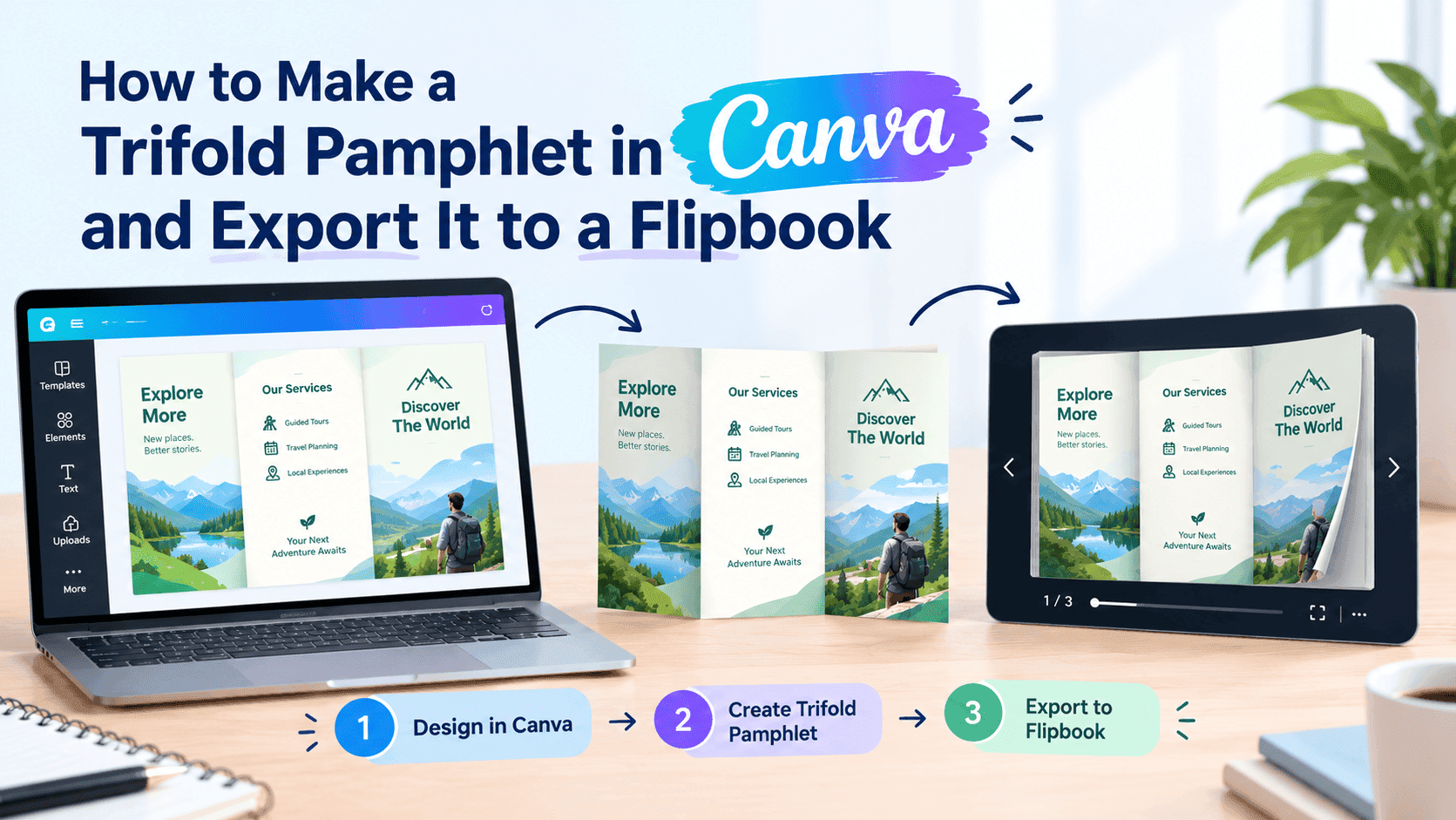
And if you do have a Canva account and want more control over graphics, making a pamphlet in Canva is the better tool for that job. Docs wins when the content is mostly text and you want something your colleagues can edit without a login.
Check it before you export
Switch to View > Print layout and scroll through every page. Look for headings stranded at the bottom of a column with their paragraph on the next one. Select each heading and open Format > Line & paragraph spacing, then tick "Keep with next." That one setting stops most of them. Do the same with "Keep lines together" on short paragraphs that shouldn't split across a column.
Add page numbers under Insert > Page numbers, and untick "Show on first page" so the cover stays clean. Run the spelling check. Then shrink your browser window to roughly phone width and read the pamphlet again, because that's closer to how it'll be viewed.
Export the Google Doc to PDF
Go to File > Download > PDF Document (.pdf). Fonts are embedded, colours carry across, hyperlinks stay live and page colour comes through if you set one. Check the file size once it downloads. Anything under 10 MB loads comfortably on a phone. If yours is larger, go back and shrink the images rather than running the PDF through a random compressor, which often blurs text.
Give the file a name a human would recognise, like spring-guide-2026.pdf, since some people will download it and it'll sit in a folder for months.
Convert a Google Doc to a digital pamphlet with a flipbook
A PDF is the right format to save and the wrong one to hand out. It opens in a viewer built for contracts, readers scroll through it vertically and pinch to zoom, and you never learn whether anyone got past the cover.
Upload the PDF to ZipFlipbook and the same file becomes a flipbook with page turns, your logo and colours on the viewer, a shareable link and an embed code you can paste into a website. It's free to start, and you don't need to rebuild anything: the columns, section breaks and image sizing you set in Docs carry straight across, because the flipbook is made from the PDF.
Once it's live there's more you can do with it. Add a lead capture form before the first page if the pamphlet is a download people should leave an email for. Check which pages get read and where people drop off, which tells you whether that long middle section earns the space. Replace the PDF with a corrected version without changing the link you already sent around, which matters when you've printed a QR code on a poster.
The analytics side is the difference most people notice. Sending a plain PDF means you never see opens, so people end up looking for ways to track PDF opens for free after the fact. With a flipbook link the tracking is part of the format, so you know on Thursday whether the Monday email did anything.
For teachers, that means seeing whether the unit guide got opened before the lesson. For a small business, it shows how many people read the service pamphlet before they call. For students, a link that opens as a clean flipbook looks better in a portfolio than an attachment ever will.
FAQ
Is there a Google Docs pamphlet template? Yes, the template gallery has brochure and newsletter layouts, and what you see varies by account. A blank document with 0.6-inch margins, two columns and a cover section break is quicker to edit.
How do I make a pamphlet on Google Docs with two columns? Open Format > Columns and choose two. Add a section break (next page) after the cover first, so the cover stays full-width and only the inside pages split into columns.
Why does my text jump to the wrong column? Usually it's blank lines pushing content around. Delete them and use Insert > Break > Column break to start a new column on purpose.
Do hyperlinks survive when I download the Doc as a PDF? Yes. Links stay clickable in the PDF and in a flipbook made from it.
Can I convert a Google Doc to a digital pamphlet for free? Yes. Export the Doc as a PDF, upload it to ZipFlipbook, and share the link or paste the embed code on your site.
Turn Your PDFs into Lead Generation Machines
Start getting highly-qualified leads from your PDFs and landing pages today. It takes exactly 2 minutes to set up.
No credit card required • Sign up in 10 seconds
Before you send it
Make the pamphlet in Docs, export it as a PDF, and read the PDF on your phone before anything else. If the type is readable without zooming and the first page makes you want to turn it, upload it and send the link. If you have to pinch to read a caption, go back and bump the font size.