Learning how to make a pamphlet in Canva takes about twenty minutes. Getting that pamphlet to look decent on someone's phone is where the evening goes.
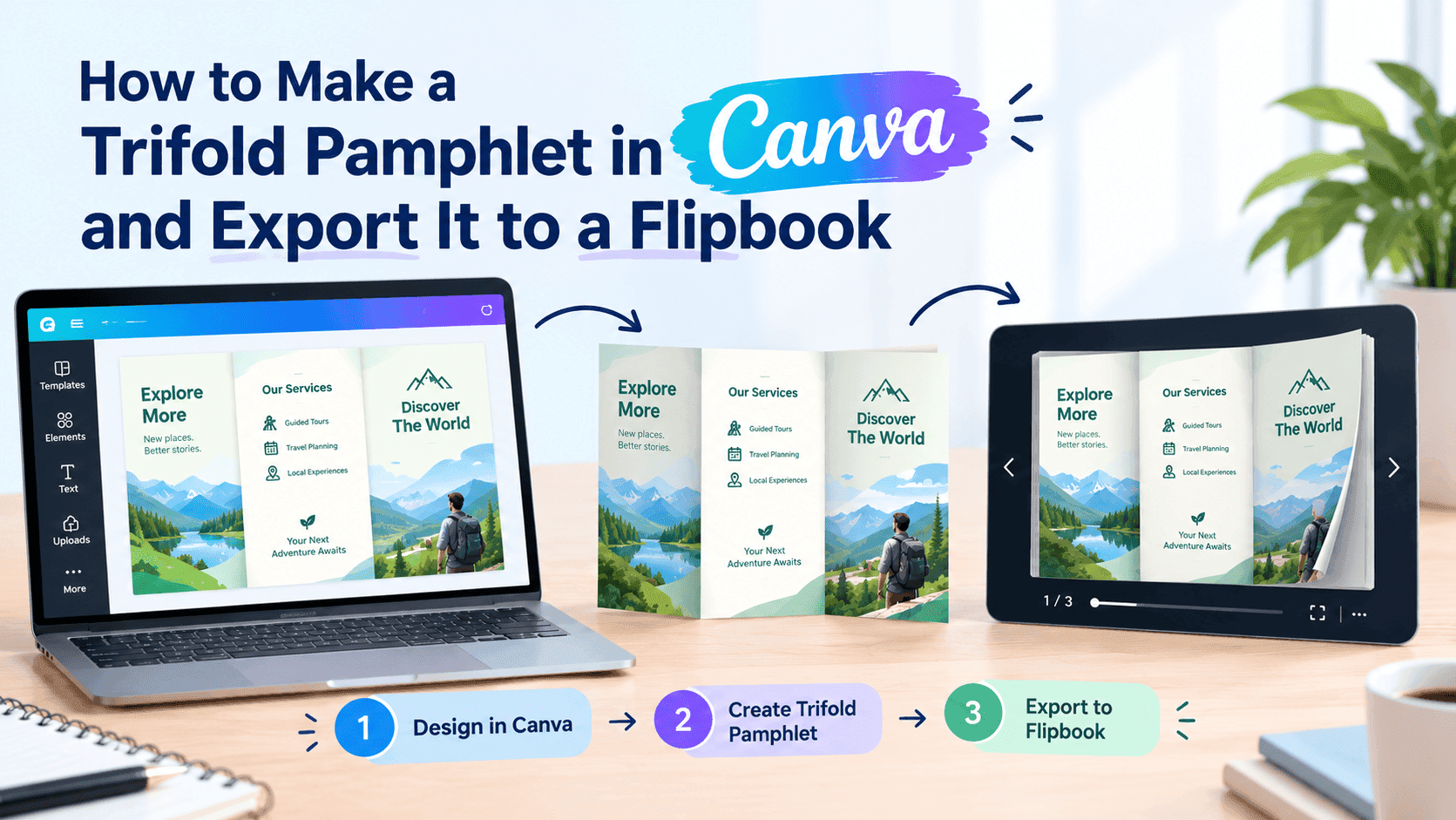
Canva's trifold templates are built for the printer. You get two landscape pages, the outside and the inside, with three panels side by side on each. Print them double-sided, fold, and it's a nice little leaflet. Export the same file as a PDF and drop it into a flipbook or onto your website, and you get two wide pages crammed with tiny text, panels that run into each other, and a reader who pinches and zooms for ten seconds before giving up.
Taking a Canva trifold pamphlet digital only works if you rebuild the panels as six separate pages before export. Plan for it early and it's copy-paste. Miss it and you're rebuilding the whole thing.
How to make a pamphlet in Canva: start with the right canvas
Open Canva, type "brochure" into the search bar and pick one of the tri-fold templates. They open as an 11 x 8.5 inch landscape design with two pages. On A4 paper you'd work at 297 x 210 mm instead. If you'd rather not start from a template (and for a pamphlet that's going digital, I wouldn't), choose Create a design, then Custom size, and type in the dimensions yourself.
Build the landscape sheet anyway. You'll need it if someone asks for printed copies for a market stall or a front desk.
The standard letter-size trifold divides the 11-inch width into three panels of roughly 3.67 inches each. On A4 it's 99 mm per panel. One quirk if you're printing: the panel that folds inward is usually trimmed about 1/16 inch narrower than the other two so it doesn't buckle. For a pamphlet that mostly lives on screen, equal thirds are fine and nobody will notice.
Page one of the design is the outside of the pamphlet. Left to right it's the inside flap, the back panel, and the front cover. The cover sits on the right and the flap on the left, which is the opposite of what most people expect. Page two is the inside, three panels that read left to right the way you'd expect.
Get this orientation wrong and the printed version comes out with the cover on the back. Get it right and the digital version gets much easier later, because you already know which panel is which.
Turn Your PDFs into Lead Generation Machines
Start getting highly-qualified leads from your PDFs and landing pages today. It takes exactly 2 minutes to set up.
No credit card required • Sign up in 10 seconds
Mark the folds before you add a single word
Canva doesn't draw fold lines for you on a custom canvas. Some of the templates have faint dividers baked in as elements, and those are easy to delete by accident or, worse, to leave in and export.
Turn on rulers and guides from the File menu, under View settings. Then drag a guide out of the left-hand ruler and drop it on the page. Do that twice per page. On an 11-inch-wide canvas the folds sit at 3.67 and 7.33 inches. If your rulers are showing pixels, the page is 1056 px wide and the folds sit at 352 and 704. For A4 in millimetres, use 99 and 198.
Guides don't export, so they won't end up in the PDF the way a drawn line would.
Then add a second set of guides about 0.25 inch inside each fold. That's your safe zone. Text that sits closer than a quarter inch to a fold either gets swallowed by the crease in print or looks cramped against the edge of a phone screen once you split the panels apart later. Both problems have the same cure, so you may as well deal with it now.
A headline across a fold can look fine in Canva and then break when the sheet is split into panels. Guides catch that in three minutes.
Design the six panels with a phone in mind
Readers see the panels in a different order than you design them. The cover is panel one. Open it and the reader sees the inside flap next to the first inside panel. Open it fully and all three inside panels are in front of them. The back panel, with the contact details and the call to action, is the last thing they see.
For a digital version, put that sequence in a note somewhere: cover, flap, inside left, inside middle, inside right, back. You'll need that list in a few minutes.
Now the part that matters for screens. Body text in a printed trifold is usually 9 to 11 pt. On a phone, a panel that's 3.67 inches wide gets displayed at roughly the width of the screen, and that's fine, because each panel is narrow and tall like a phone anyway. The trouble starts when the whole 11-inch sheet is shrunk to fit. Then your 10 pt body copy is rendering at about a third of its size, and nobody is reading it.
Write one panel at a time. Give each panel one idea: a headline, a couple of sentences, and an image. If a panel needs a paragraph of eight lines, the pamphlet is trying to be a brochure, and a brochure wants a different format. If you're not sure which one you're making, the breakdown of digital pamphlet vs digital brochure is a quick way to settle it before you spend an hour laying anything out.
Links need attention too. Canva lets you attach a link to any text or element, and links survive the PDF export. Put the main one on the back panel, make the button big enough for a thumb, and give it real words ("Book a free quote") instead of a bare URL.
Why a standard Canva trifold PDF looks broken on mobile
Download the PDF Standard file and open it in a flipbook reader, and you'll see the problem. It's a two-page file. Both pages are landscape. Each one holds three panels in a row.
A flipbook reader treats every PDF page as one page of a book. So the first thing a reader sees is the outside sheet, flap, back and cover all in one wide image, with the back panel sitting in the middle for no reason. The cover is on the far right. On a desktop screen you can zoom in. On a phone you can't read any of it without pinching.
Many flipbook readers also show pages as a book, and a two-page file gives them nothing to work with. You end up with the outside sheet and the inside sheet in a layout nobody would get from opening a real leaflet.
There's also the matter of reading order inside the sheet. Your pamphlet's logic runs cover, flap, inside panels, back. The flat PDF holds those panels in print order, which is flap, back, cover on page one. A reader looking left to right meets your back panel's call to action before they've seen a single product.
Canva is doing what a print PDF is supposed to do. The file is right for a printer and wrong for a phone.
So don't upload the print sheet. Make a separate file for screens: six narrow, tall pages, one per panel, in the sequence you wrote down earlier.
Export the panels as individual pages
Canva can't slice a page into thirds on export, so the trick is to build the digital version as its own design. This is faster than it sounds. You're moving finished panels, not redesigning them.
Create a new custom design at 3.67 x 8.5 inches (352 x 816 px, or 99 x 210 mm for A4). Add five more pages so you have six. Now go back to the print design, click an empty patch of the first panel, and drag a box around everything inside the cover's third of the sheet. Copy it, switch to the new design, paste it onto page one, and drag it until it sits flush with the edges. Because the panel was exactly a third of the width, it fits without resizing. Do the same for each of the other five, pasting them in reading order: cover, flap, inside left, inside middle, inside right, back.
Backgrounds cause the most trouble. If a background colour or photo runs across all three panels as one element, select it, paste a copy into each page and slide it so the right third shows. It's fiddly once, then done. If every panel has its own background, you're finished already.
Before you export:
- Nothing crosses a panel edge. Scroll the pages in order and look for a headline or photo that was split across a fold.
- Text is at least 12 pt. You can go bigger now because you only have one narrow panel to fill.
- Links are attached to the right elements. Click one in Canva's preview to confirm.
- The page order matches your sequence note.
Then click Share, Download, choose PDF Standard, select all six pages, and download. PDF Print adds crop marks and bleed for a printer, and you don't want those on a phone screen. Skip anything that flattens the file, since flattening can strip out the links you just added.
Check the file size. A six-page panel PDF with a handful of photos usually lands in the 2 to 6 MB range, which is fine. If yours comes out above 10 MB, you've probably got oversized photos, and the post on optimizing large PDFs for fast online flipbooks covers how to shrink it without turning everything to mush.
Keep the original landscape design too. That one is still your print file. Two designs, two jobs.
Canva trifold pamphlet to digital: upload it to ZipFlipbook
With a six-page panel PDF in hand, the rest takes about a minute.
Go to zipflipbook.com and upload the PDF. It's free. ZipFlipbook reads each PDF page as one page of the flipbook, so your six panels become six pages in the order you exported them. A reader on a phone swipes from the cover to the flap to the inside panels and ends on the back, which is the sequence you planned in the design stage.
Open the result on your own phone before you do anything else. Swipe through it. Check that each panel fills the screen, the text is readable without zooming, and the back panel's button actually goes where it should. If a panel looks too small, the usual cause is a page that was exported with extra white margin, and you'd fix that in Canva by checking the pasted elements weren't offset from the page edge.
Once it looks right, you've got a few ways to get it in front of people. Copy the link and send it in a message or an email. Embed it on a page of your own website. Or turn the link into a QR code and put it on a poster, a shop window or the back of a business card. A pamphlet that started life as paper is a natural fit for a QR code, since the people who'll see it are often standing in front of something physical.
Most Canva exports can't tell you whether anyone read the pamphlet. A PDF emailed as an attachment tells you nothing. A flipbook link comes with analytics, so you can see whether anyone opened it and how far through they got. If your pamphlet has a call to action on the last panel and most readers stop at panel three, that tells you the middle of the pamphlet is losing people. ZipFlipbook also lets you add lead capture, so readers can leave an email address, and embed media such as a video on a panel. Both are optional. A clean pamphlet that loads fast is enough.
If you want to see how the same Canva-to-flipbook idea works for a longer publication, the walkthrough on making a zine in Canva and turning it into a digital flipbook follows a similar path, with more pages and more reasons to care about spreads.
Turn Your PDFs into Lead Generation Machines
Start getting highly-qualified leads from your PDFs and landing pages today. It takes exactly 2 minutes to set up.
No credit card required • Sign up in 10 seconds
A free online pamphlet maker in Canva: what you can do without paying
People search for a free online pamphlet maker Canva offers, and mostly they find that it works. You can do everything above on a free Canva account: create a custom size, add guides, copy and paste elements between designs, attach links, and download a standard PDF. None of that sits behind the Pro plan.
Templates, photos and graphics with a crown icon are premium, and using one on a free account means either paying for that item or swapping it out. Magic Resize, the tool people reach for when they want to convert the landscape sheet into six narrow pages, is a Pro feature. It wouldn't help anyway, since resizing a design stretches or shrinks it. It doesn't cut it into thirds. The copy-and-paste method works on the free plan and gives you full control over each panel.
On the other side of the process, ZipFlipbook is free to use. The two together give you a pamphlet maker and a digital reader without a subscription, which is a reasonable setup for a small business, a local club, or a one-person shop sending out its first leaflet.
Canva is the easiest design tool in this category to learn, and that's the main reason to use it here.
Finished designs stay in your account, so you can come back and edit them. Update the copy on a panel and re-export the PDF whenever you need to.
Test it on a phone before you send it to anyone
The desktop preview lies. Everything looks fine on a 27-inch monitor with a mouse. Pick up a phone, ideally an older one, and open the link over mobile data rather than your office wifi.
Swipe through all six pages and watch for four things. Does the cover load quickly, or do you stare at a blank screen? Is the smallest line of text readable at arm's length? Can you tap the button on the back panel without hitting the line above it? And does anything sit so close to the edge that a thumb or a notch hides it?
Then send the link to one other person and ask them to open it without any instructions. Whatever they fumble over first is the thing to fix. People who built the pamphlet can't see its flaws, because they already know what each panel is supposed to say.
If you spot a problem, the fix is almost always in the Canva panel design: a headline that's too close to the edge, a photo that was pasted two pixels off, a button that's too small. Edit it, download the PDF again, and swap the file. The print design doesn't need to change unless you want the paper version to match.
Name the file sensibly, like spring-offers-pamphlet.pdf, rather than Untitled design (7).pdf. The reader won't care, but you will when you're hunting through four versions in Downloads.
Turn Your PDFs into Lead Generation Machines
Start getting highly-qualified leads from your PDFs and landing pages today. It takes exactly 2 minutes to set up.
No credit card required • Sign up in 10 seconds
FAQ
How do I make a pamphlet in Canva?
Open a tri-fold brochure template or a custom 11 x 8.5 inch design, add two guides per page, and fill three panels on each.
What size is a trifold pamphlet in Canva?
11 x 8.5 inches (1056 x 816 px) on US Letter, 297 x 210 mm on A4.
Can I upload the Canva trifold PDF straight to a flipbook?
You can, but you'll get two wide pages. A six-page panel PDF reads far better.
Why do my links stop working after I export the PDF?
Flattening the PDF can strip them. Download PDF Standard without flattening, then tap each link in the flipbook on your phone.
Is there a free online pamphlet maker in Canva?
Yes. The free plan covers everything here except crown-marked templates and photos.
Can I split the PDF instead of rebuilding it in Canva?
If you have a PDF editor that crops pages into thirds, yes. You lose the Canva edit link, so I'd still paste the panels into a six-page design.