A client sent me a PDF last month and asked, almost apologetically, "can you just put this on the site?" She'd built the actual document herself — a nice enough product sheet, decent photography, a few paragraphs she'd clearly agonised over. And then she wanted it to just... appear. On a page. Somewhere people could read it without downloading anything.
That request sounds trivial. It isn't, quite. PDFs are one of the most common files on the internet and also one of the most awkward to actually put inside a webpage. Browsers weren't built with PDFs in mind — they were bolted on later, unevenly, and the result is a patchwork of methods that all sort of work, none of which work everywhere, and at least one of which will make your mobile visitors want to throw their phone across the room.
I've embedded a lot of PDFs over the years, first as a developer working on internal tooling, now running an SEO agency where half my clients hand me a brochure PDF and expect it to behave like a normal web page. So here's what actually works, what breaks, and which option I'd reach for depending on what you're trying to do.
Why This Isn't as Simple as Dropping in a Link
The naive approach is an anchor tag: <a href="brochure.pdf">Download our brochure</a>. That's not embedding, that's just using a direct PDF link, and depending on the browser it either opens a new tab with the PDF rendered inline, or triggers a download straight to the user's downloads folder with zero context. Chrome tends to open it. Some mobile browsers download it. Older versions of Safari on iOS have historically just given up and shown a blank page until the user taps something.
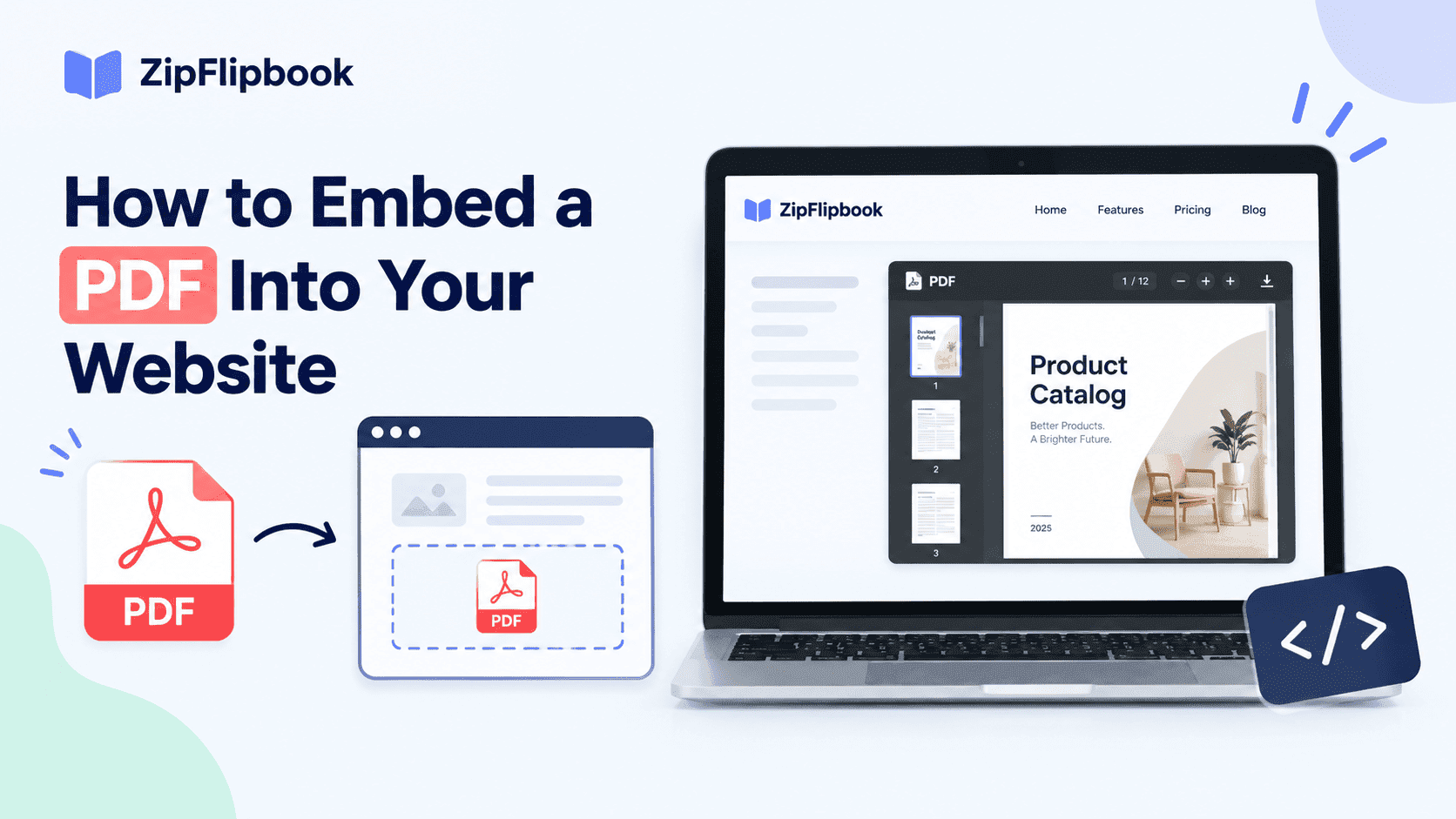
None of that is "embedded." Embedded means the PDF lives inside your page, next to your other content, without the visitor leaving or losing their place. That's a genuinely different technical problem, and there are really only four ways to solve it.
Option 1: The <iframe> Tag
This is the one every Stack Overflow answer from 2014 still recommends, and it's not wrong, exactly — it's just showing its age.
html
<iframe src="brochure.pdf" width="100%" height="800px" title="Product Brochure"></iframe>
It works in most desktop browsers because they hand the PDF off to a built-in viewer plugin. Chrome, Firefox, and Edge all ship one. The problem is that "built-in viewer" varies wildly by browser, and mobile is where it really falls apart — iOS Safari and most Android browsers don't render PDFs inside iframes reliably at all, so a chunk of your visitors get a grey box, or a spinning loader that never resolves, or the file just quietly downloads instead.
I still use iframes for quick internal tools, staging pages, anything where I control exactly which browser will view it. I would not use one for a client-facing product page in 2026. Too many people browse on phones now, and a grey rectangle where your brochure should be is a worse experience than no PDF at all.
Option 2: The <embed> Tag
Functionally similar to the iframe, slightly older syntax, same underlying problem:
html
<embed src="brochure.pdf" width="100%" height="800px" type="application/pdf">
<embed> relies on the same native PDF plugins as <iframe>, which means it inherits the same mobile weaknesses. I mention it mostly because people ask — if someone tells you <embed> is more "modern" than <iframe> for this purpose, they're mistaken. Neither one solves the actual problem, which is that native PDF rendering across browsers has never been standardised.
Option 3: PDF.js and Custom Viewers
Mozilla built PDF.js specifically because native browser support was so inconsistent, and it's genuinely a good piece of engineering — it renders PDFs using JavaScript and canvas rather than relying on the browser's built-in plugin, so behaviour is consistent everywhere it runs.
The catch is implementation weight. You're pulling in a JavaScript library, configuring a viewer, handling loading states, thinking about accessibility for screen readers, and usually still building your own page navigation and zoom controls on top. It's the right call if you're a development team with the PDF as a core product feature — a contract-signing tool, a document management platform, something where the PDF viewing experience is the product. For a marketing team who wants a brochure on a landing page by Friday, it's a lot of scaffolding for what should be a five-minute job.
I built something PDF.js-adjacent for an internal system a couple of years back, mostly because we needed page-level analytics baked in. It took about three days longer than I'd budgeted, which is roughly the ratio you should expect: PDF.js gets you consistency, at the cost of your afternoon becoming your week.
Turn Your PDFs into Lead Generation Machines
Start getting highly-qualified leads from your PDFs and landing pages today. It takes exactly 2 minutes to set up.
No credit card required • Sign up in 10 seconds
Option 4: Third-Party Flipbook and Embed Services
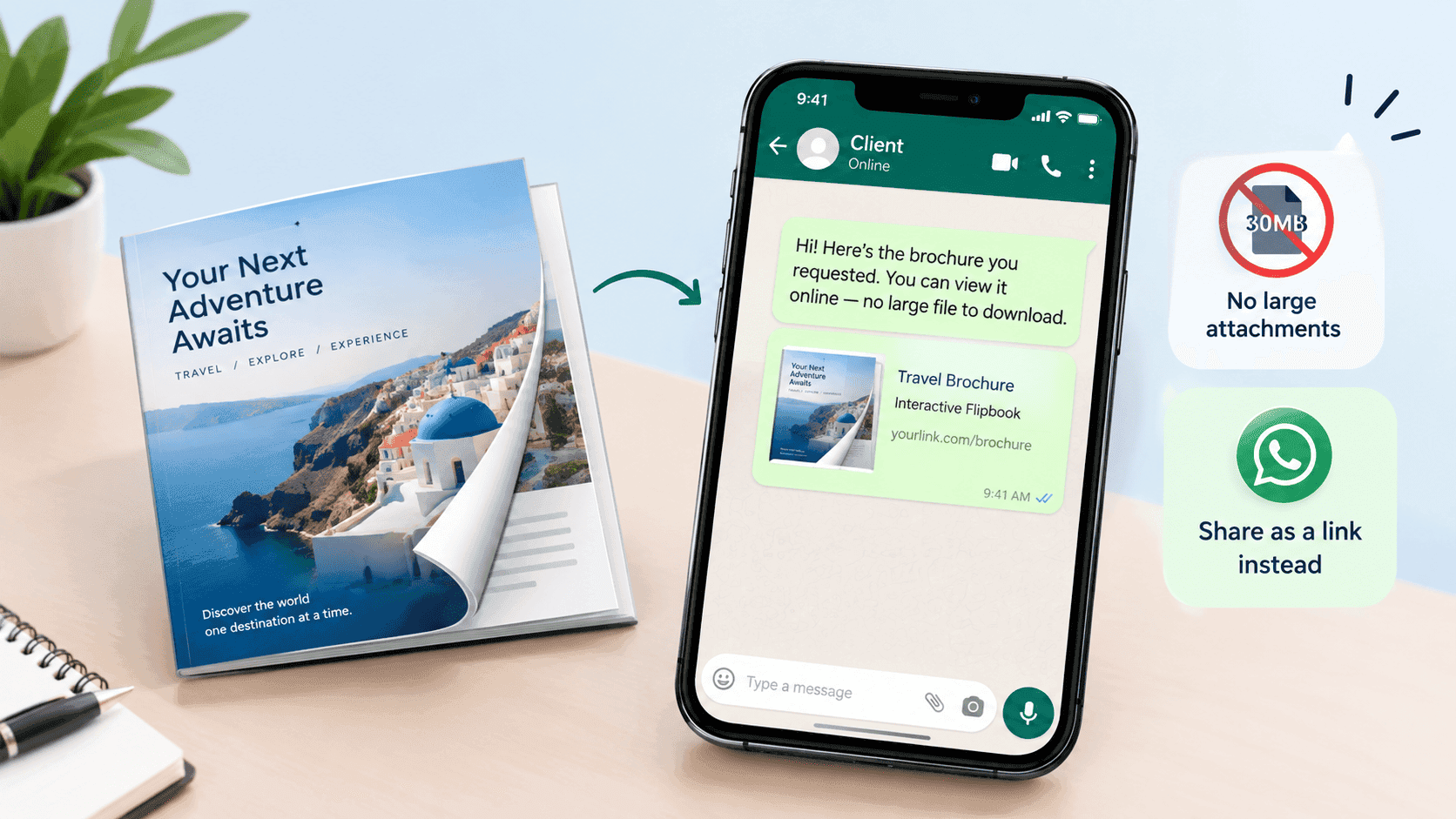
This is where most people actually land, whether or not they set out to. Upload the PDF, get back an embed code or a link, drop it into the page. No plugin inconsistency, no JavaScript to maintain, and — because these services usually convert the PDF into images or a purpose-built viewer rather than relying on the browser's native handling — the experience is close to identical whether someone's on a five-year-old Android phone or a brand new MacBook.
This is basically what I built ZipFlipbook to do, so I'll be upfront about the bias: I made it because I got tired of the other options above going wrong in front of clients. But the category itself — flipbook and document-embed tools — exists precisely because "just embed a PDF" turned out to be a problem worth solving properly rather than patching with an iframe every time. If you're comparing options in this space, it's worth reading through <a href="https://zipflipbook.com/blog/embed-pdf-wordpress-for-free" target="_blank" rel="noopener">a WordPress-specific walkthrough</a> if that's your platform, since the embed step differs slightly depending on whether you're working in the block editor or a page builder.
The genuine trade-off with any of these tools is that you're depending on someone else's infrastructure staying up. If their servers go down, your embedded document goes down with it. For most small businesses, that risk is smaller than the risk of a broken iframe on launch day, but it's worth knowing you're making that trade.
What I'd Actually Recommend
If the PDF is a one-off, low-stakes document and you control the browsing environment — put it in an iframe and move on with your day.
If PDF viewing is core to your product and you have engineering time to spend — PDF.js, properly implemented, is worth it.
For almost everyone else — a product catalogue, a menu, a brochure, a proposal you want prospects to actually engage with rather than download and forget about — a dedicated embed tool is the pragmatic choice. It handles the cross-browser mess for you, and most of them add things a plain PDF never had in the first place: page-turn animations that make people actually flip through rather than skim the first page and leave, and usually some kind of analytics so you can see whether anyone's reading past page two. If tracking that engagement matters to you, it's worth looking at <a href="https://zipflipbook.com/blog/how-to-track-pdf-opens-for-free" target="_blank" rel="noopener">how to track PDF opens</a> alongside whatever embed method you land on — knowing a document was viewed is very different from knowing someone actually got to your pricing page.
The Bit Nobody Mentions: Page Speed
Whatever method you choose, a poorly embedded PDF is one of the fastest ways to tank your page load time. A 15MB brochure loaded via iframe on page load, with no lazy-loading, no compression, will drag your Core Web Vitals down and Google will notice before your visitors do. I've inherited more than one client site where the "brochure" page took nine seconds to become interactive because someone embedded a print-resolution PDF straight off the press.
A few things that actually help regardless of which embedding method you pick:
Compress the PDF before you upload it anywhere. Most PDF creation tools default to print-quality resolution, which is massive overkill for screen viewing — you can usually cut file size by 60-80% with no visible quality loss on a monitor.
Lazy-load the embed so it only loads once the visitor scrolls near it, rather than blocking the whole page from rendering.
Give the viewer explicit width and height so the browser doesn't have to recalculate layout once the PDF loads in — that layout shift is exactly the kind of thing that hurts your Cumulative Layout Shift score.
These aren't nice-to-haves. I've watched a client's bounce rate on a product page drop by almost a third purely from fixing PDF load weight, no other changes. If you want the fuller picture on this, it's worth reading through <a href="https://zipflipbook.com/blog/how-to-embed-a-flipbook-on-your-website-without-slowing-it-down" target="_blank" rel="noopener">how to embed a flipbook without slowing your site down</a>, because the same principles apply whether you're using a flipbook tool or a raw PDF viewer.
Turn Your PDFs into Lead Generation Machines
Start getting highly-qualified leads from your PDFs and landing pages today. It takes exactly 2 minutes to set up.
No credit card required • Sign up in 10 seconds
A Quick Word on Accessibility
Screen readers can, in theory, read text-based PDFs — but "in theory" is doing a lot of work in that sentence. Scanned PDFs with no OCR layer are invisible to assistive technology entirely, and even well-tagged PDFs are a worse experience for screen reader users than genuine HTML content. If your PDF contains information that matters — pricing, terms, anything load-bearing — consider also having that content available as actual text on the page, not just locked inside the embedded document. It's better for accessibility, and incidentally it's also better for SEO, since Google can crawl your HTML far more reliably than it parses embedded PDF content.
I ran into this properly once with a property listings PDF a client had embedded as their entire "Current Availability" page. No HTML fallback, no alt text, nothing — just a PDF sitting there. Google indexed the page title and nothing else, because there was nothing else to index. We rebuilt it with a short HTML summary above the embed — property names, prices, a line of description each — and organic traffic to that page roughly tripled over the following few months. The PDF stayed exactly the same. What changed was that search engines and screen readers finally had something to actually read.
Putting It Together
There's no universal right answer here, which is a slightly unsatisfying place to end an article, but it's the honest one. An iframe is fine for something low-stakes. PDF.js is right if you're building a product around document viewing. A dedicated embed service is the sensible middle ground for most businesses that just want a brochure or catalogue to look professional without an engineering sprint behind it.
What actually matters, whichever route you take, is testing on a real phone before you call it done. Not the responsive mode in your browser's dev tools — an actual phone, on an actual mobile connection, because that's genuinely where most of these methods quietly fail. Load the page, watch how long it takes, try scrolling through the document with your thumb the way a real visitor would. If it feels clunky to you on your own phone, it will feel clunky to everyone else too, and no amount of clever SEO copy above the fold will make up for a document that won't open.