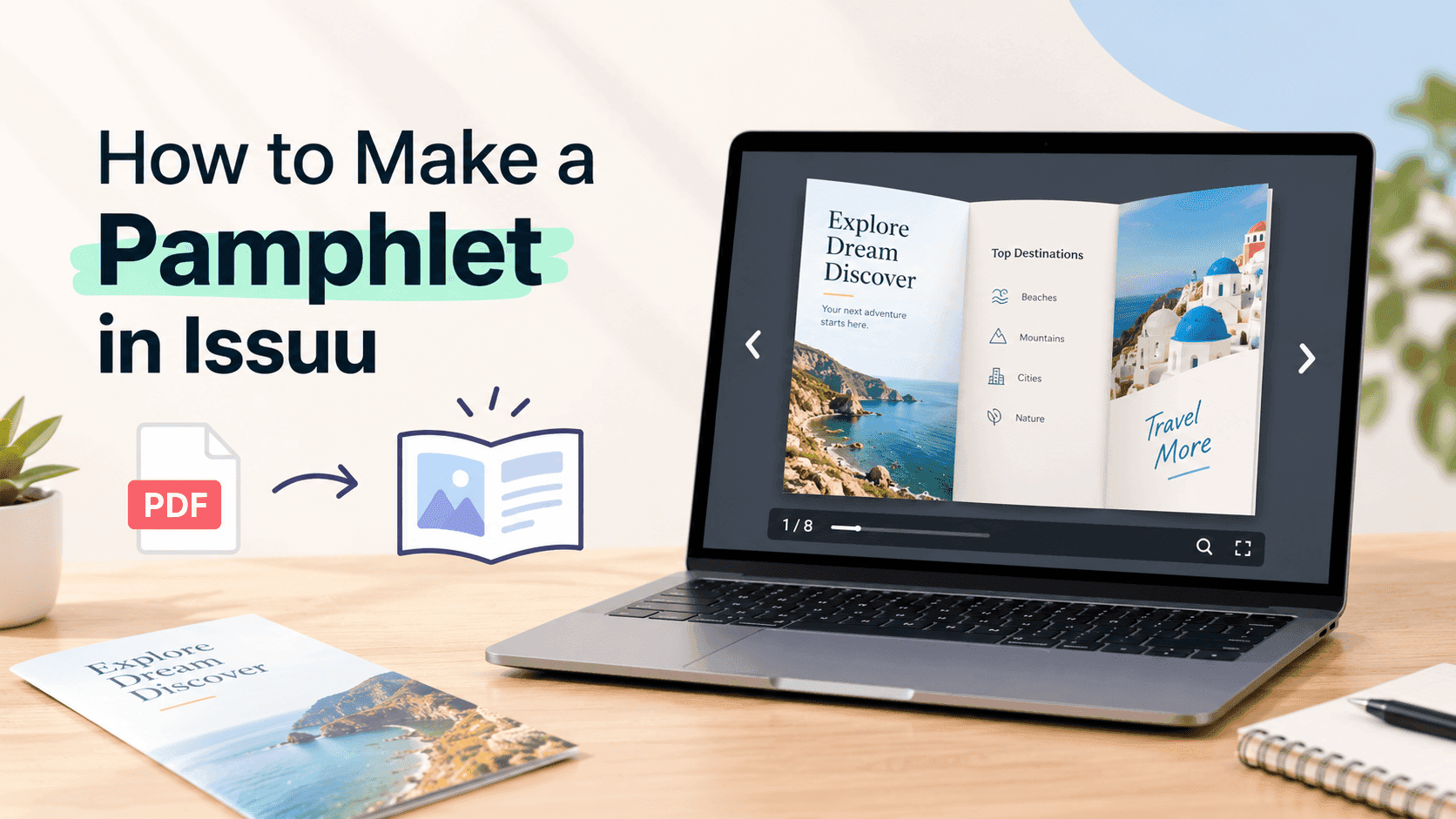
If you searched for how to make a pamphlet in Issuu, you've probably already noticed that Issuu has no pamphlet button. No template picker, no fold options, nothing that looks like a pamphlet maker. Issuu takes a finished PDF and turns it into something people can flip through in a browser. Issuu doesn't make the pamphlet; it publishes the PDF you already made. Most bad Issuu pamphlets were bad before upload.
I run ZipFlipbook, so I'm biased, and I'll say where Issuu is the wrong tool further down. It is still the platform most people have heard of, it ranks well in search, and a lot of pamphlets live there happily. The steps below get it published without the usual print-file mess.
What Issuu does with a pamphlet, and what it leaves to you
A pamphlet is short and single-topic, say a trifold for a dental clinic or an eight-page recycling guide. The digital pamphlet version is the same content on a screen, where the reader swipes or clicks instead of unfolding paper.
Issuu handles the screen part. You give it a PDF, it converts each page into a reader with page turns, hands you a link and an embed code, and shows you some view stats. It does not design anything and it has no idea what a panel is. A trifold exported from Canva as a print file will upload as two pages, outside and inside, with the panels in an order nobody reads in. Issuu will display that faithfully, which is exactly the problem.
So you have three jobs: lay it out for page-by-page reading, export a clean PDF, then upload. Most people start with the upload.
Turn Your PDFs into Lead Generation Machines
Start getting highly-qualified leads from your PDFs and landing pages today. It takes exactly 2 minutes to set up.
No credit card required • Sign up in 10 seconds
Step 1: Pick the page size and page count before you open a design tool
First decide whether this is a print pamphlet that also goes online, or a screen pamphlet only. If it's both, make two files. That sounds like extra work, and it is less work than rescuing a print layout so it reads properly on a phone.
For the screen version, portrait pages behave best in Issuu. A5 portrait (148 x 210 mm) or US half-letter (5.5 x 8.5 in) feels like a pamphlet in the hand, stays readable on a small screen, and keeps the file light. A4 portrait works as well, though body copy gets small on a narrow phone. Landscape pages are a bad idea unless each one is a full spread, because Issuu will show a single wide page and your reader ends up pinching to zoom.
Page count is where a lot of pamphlets get messy. Even numbers are tidier, since an odd last page sits alone on the right-hand side looking unfinished. Four, six, eight or twelve pages cover most pamphlets. A trifold converts to six pages, one per panel, in the order someone would actually read them: cover, the three inside panels, then the remaining flap and back panel. Write that order on paper before you design anything. It takes two minutes and stops the most common mistake, which is uploading panels in print order.
Step 2: Design it in a tool you already know
Issuu expects the design to arrive finished, so use whatever exports a decent PDF. Canva is the usual pick because the templates are plentiful and free. Word and Google Docs work fine for text-heavy pamphlets, and InDesign is there if you already own it. If you're in Canva, the Canva pamphlet walkthrough covers page sizes and export settings in more detail than I will here.
Some choices that were fine in print fall apart on a phone. Body text at 10 or 11 pt on an A5 page is about the floor; go smaller and the phone reader has to zoom on every paragraph, and most won't bother. Put one idea on each page. A printed trifold can get away with cramming because the reader holds the whole thing and chooses where to look, whereas a flipbook shows one page at a time and rewards pages that make a single point.
Spend the most time on the cover. On Issuu it becomes a thumbnail. Open your cover design at about the size of a postage stamp and check you can still read the title. If you can't, the title is too small or too thin, and nobody will click it from a search result or a profile page.
The last page should tell the reader what to do next. A phone number, a booking link, a web address, a QR code. Pamphlets are supposed to prompt an action. Too many end on a legal panel and nothing else.
Step 3: Export a PDF that behaves online
Export single pages, not spreads and not a print imposition. If your tool offers a choice between pages and spreads, choose pages. Leave off crop marks and bleed, since they're for the printer and will show up as odd white margins in the reader. Export in RGB rather than CMYK. Screens are RGB, and CMYK conversions can leave the colours looking dull once Issuu processes the file.
Images at 150 dpi are plenty for a screen. A pamphlet that comes out of Canva at 40 MB is usually carrying 300 dpi photos that nobody will ever see at that resolution, so compress them. Under about 20 MB is a good target for a short pamphlet, and most six-page ones end up well below that. Big files upload slowly and load even more slowly on mobile data.
Embed your fonts, or convert text to outlines if your tool has that option. A missing font swaps in something else during conversion and your carefully spaced headline ends up wrapping onto a third line. Keep any links live in the PDF too. Hyperlinks usually carry over into Issuu, but click every one after publishing rather than trusting that they did.
Open the exported PDF in a normal viewer before you go anywhere near Issuu. Scroll through it as a reader would. Page order wrong? Fix it now, because it's far easier here than after you've uploaded, titled and shared it.
Step 4: Upload the PDF to Issuu
Create an account if you don't have one, log in, and look for the create or upload option in your dashboard. Issuu changes the labels and layout of that screen often, so I won't promise exact button names. What you want is the option to publish from a PDF, as opposed to starting a design from one of their templates.
Select your file and wait. A short pamphlet processes quickly, usually well under a few minutes, while a long catalogue takes longer. When it finishes you'll get a preview. Flip through it properly, on desktop and then on your phone if you can. Check three things: the pages appear in reading order, the text is crisp at normal zoom, and nothing important has been cropped at the edges.
If something looks off, don't patch it inside Issuu. Fix the source file, re-export, and upload again. Editing around a broken export wastes more time than starting the upload over.
Step 5: Set the title, description and privacy
The title is what people see in search results and on Issuu's own pages, so make it say what the pamphlet is and who it's for. 'Recycling Guide for Congleton Residents' is better than 'Pamphlet_final_v3', and I have seen plenty of live pamphlets called exactly that. Put the main keyword near the front, written the way a person would type it into Google.
The description gets read less than the title, but it still shows up. Write one or two plain sentences about what's inside, and put your website in there if you want people to find you. Tags help a little with discovery inside Issuu, so add a handful that match the topic.
Think about privacy before you publish. A public pamphlet can be listed on Issuu and picked up by search engines, which is great for a clinic leaflet and awkward for a price list meant for existing customers only. Unlisted and private options exist, though which ones you get depends on your plan, so check what your account allows before assuming you can hide something.
Turn Your PDFs into Lead Generation Machines
Start getting highly-qualified leads from your PDFs and landing pages today. It takes exactly 2 minutes to set up.
No credit card required • Sign up in 10 seconds
Step 6: Publish, share and embed
Once you publish, Issuu gives you a shareable link and an embed code. The link is useful for emails, social posts and QR codes. The embed code is what you paste into your own site so the pamphlet reads inside the page rather than sending people off to Issuu. Most site builders have an HTML or embed block that accepts it, and the process is much the same in WordPress, Wix and Squarespace.
Test the embed on a phone before you announce anything. Look at how tall it renders, whether it pushes your page layout around, and whether the controls are big enough to tap. A pamphlet that works on your laptop and awkwardly overflows on a phone is very common, and mobile is where most of your readers are.
After a few days, look at the stats Issuu gives you. They will show how many people opened it and, depending on your plan, how far they got. If people consistently leave at page three, redesign page three.
If you also make leaflets, the process is almost identical, and creating a digital leaflet in Issuu goes through the same upload flow with leaflet-specific tips.
What the free plan will and won't give you
You can publish a pamphlet on Issuu without paying, and for a one-off that's often all you need. The catch is what comes attached. Free publications carry Issuu branding, and several features that matter for business use, such as stronger analytics and more control over where your content appears, sit behind paid plans. Limits and plan details change, so I'd rather point you at the current numbers than quote ones that may be out of date. Is Issuu free? goes through what the free account includes, and the Issuu pricing breakdown covers what each paid tier adds.
If you're making a single pamphlet for a local event, the free account is probably fine. If you're a business planning to publish pamphlets every month and want them looking like your own brand, do the maths on the paid plans first. You don't want to build a library there and then find the feature you need is locked behind a plan that costs more than you budgeted.
Mistakes that make Issuu pamphlets look amateur
The first one is uploading the print file. I've seen trifolds on Issuu where page one is the outside with the flap and back cover and page two is the inside, so the reader's first view is a panel that was meant to be tucked away. Always build a reading-order version.
The second is tiny type. It looks fine on a 27-inch monitor and unreadable on a phone. Check at phone size every time.
Crop marks and bleed are just as obvious: thin white borders and little black corner lines that were never meant for a reader. Turn them off at export.
Then there's the oversized file. A 60 MB pamphlet usually means uncompressed images. Compress the images, strip out anything hidden off-canvas, and re-export.
A vague title also costs you. If it says 'Brochure' or 'Untitled', it won't rank for anything and nobody scanning a list will click it.
The most common mistake is a pamphlet with no next step. Readers reach the final page, find nothing to do, and leave. Put a link, a number or a QR code there.
When Issuu is the wrong tool for a pamphlet
Issuu is built for publishing and discovery. It suits writers and magazines that want to sit alongside other publications. For a business pamphlet the priorities are often different. You may want the thing embedded in your own site, with your own branding and no competing content next to it. You may also want to know who is reading it.
Lead capture is the weak spot. If you want people to enter an email address before they read the pamphlet, Issuu isn't set up for that on a basic account. ZipFlipbook does it for free: you upload the PDF, switch on lead capture, and every reader who passes the form lands in your list. It also lets you drop video and links into the pages and gives you an embeddable link, so you skip the two-step of building a pamphlet and then separately working out how to track it.
If you're still working out whether you need a pamphlet or something longer, digital pamphlet vs digital brochure lays out the formats. Pamphlet means short and single-topic. Once you pass about twelve pages or start listing products, you're in brochure territory and the design and hosting choices shift.
FAQ
Can I make a pamphlet in Issuu for free? Yes, you can upload a PDF pamphlet and publish it on a free account. Expect Issuu branding on it and fewer analytics and sharing controls than you'd get on a paid plan.
Does Issuu have pamphlet templates? Not pamphlet-specific ones that I'd rely on. Design the pamphlet in Canva, Word or InDesign, export a PDF, and upload that.
What size should a pamphlet be for Issuu? A5 portrait or US half-letter is a safe choice, because it reads well on a phone and keeps the file small. A4 portrait works too if your text is large enough.
Can I make a trifold pamphlet in Issuu? You can publish one, but only after converting it to six single pages in reading order. Uploading the print layout gives you two pages with the panels scrambled.
Can I embed an Issuu pamphlet on my website? Yes. Issuu provides an embed code once you publish, which you paste into an HTML or embed block on your site. Check how it looks on a phone before you share it.
How big can the PDF be? Issuu sets its own upload limits and they've changed over time, so check the current figure on their help pages. For a short pamphlet, aim for under about 20 MB regardless.
Turn Your PDFs into Lead Generation Machines
Start getting highly-qualified leads from your PDFs and landing pages today. It takes exactly 2 minutes to set up.
No credit card required • Sign up in 10 seconds
Before you share the link
Open the published Issuu pamphlet on your own phone, flip every page, and tap every link. Then send the link to one person who hasn't seen it and watch where they get stuck. That check takes ten minutes and catches most of what the steps above miss.