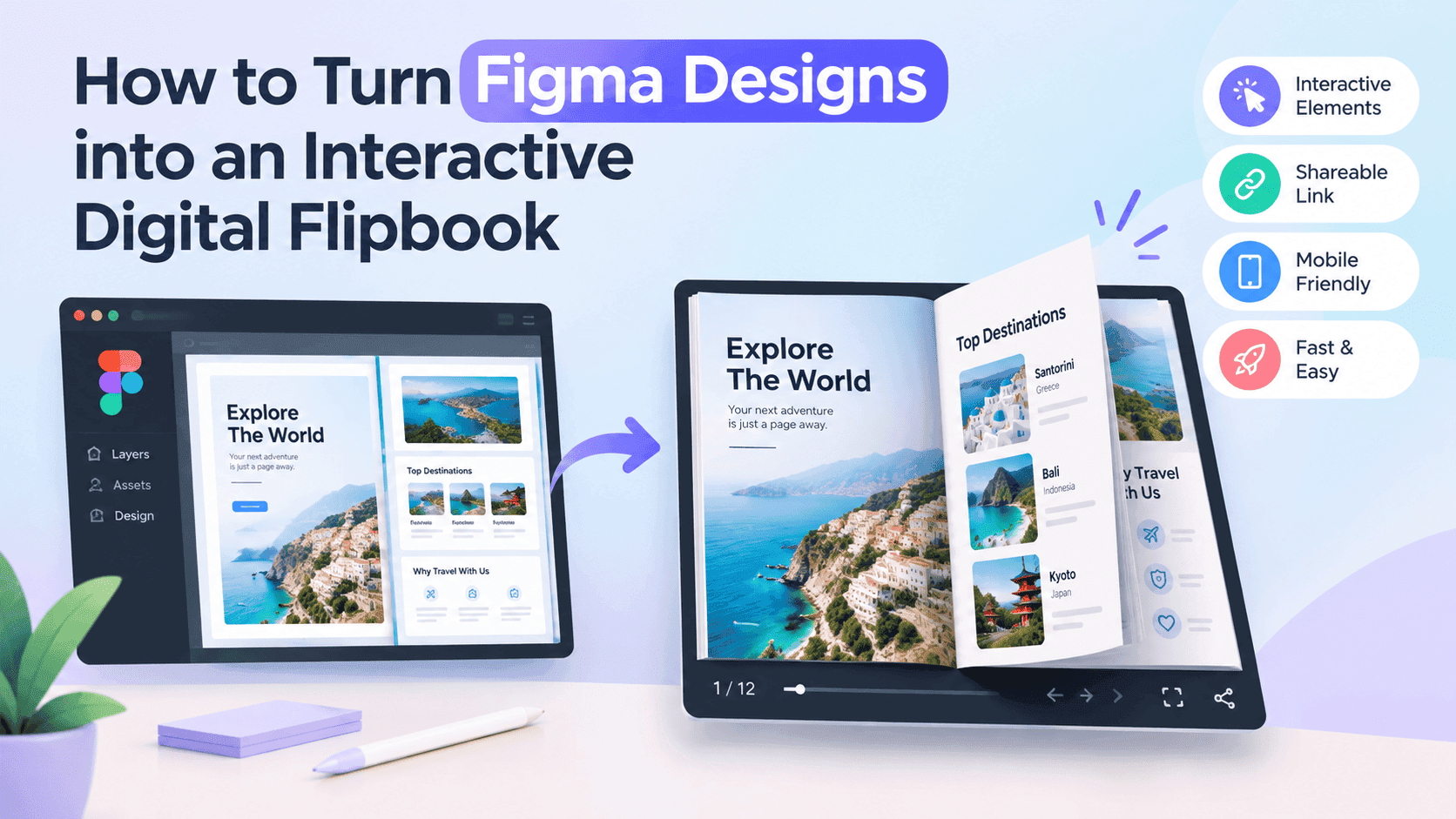
You finish the brand guidelines on a Thursday night. Forty frames, auto layout behind most of them, colour styles named sensibly for once. On Friday morning the client replies with six words: "Can you send a PDF instead?" That's usually when the figma to flipbook question comes up. A PDF feels like a downgrade, and a Figma link feels too exposed.
There's a middle route. You export a clean multi-page file out of Figma, check it, and turn it into a flipbook your client opens in a browser with no account and no chance of dragging a layer by accident. I'll cover frame setup, how to export Figma to interactive PDF, keeping vectors sharp without a 200 MB file, and publishing the result. It works for Figma brand guidelines, pitch decks and one-pagers, and for any Figma brochure presentation that needs to look polished.
Why a Figma link is the wrong thing to send a client
Figma's share link works, and for internal reviews it's the right call. If you're wondering how to share a Figma file with a client who doesn't use Figma, the link has problems that only show up after you've sent it.
The canvas is the first problem. A designer reads a Figma file spatially: frames laid out left to right, sections labelled, scratch work parked off to one side. A client opens the link and sees a zoomed-out wall of rectangles. They pinch and scroll sideways and land on page nine before they've seen page two. Prototype mode fixes some of that, but you have to wire the flow, and now you're maintaining a prototype alongside the design.
The link is also live. Move a frame, swap a placeholder, rename a layer, and anyone with the link sees it straight away. That's wonderful when you want feedback and awkward when the client is mid-read and page six rearranges itself. Some designers duplicate the file for each client to avoid it, and a few months later they have eleven copies of one brand file that no longer agree with each other.
And then you get no signal at all. You can't tell whether the client opened it, how far they got, or whether the finance director forwarded it to three people who never read past the cover. A flat PDF on an email has the same blind spot, plus the added joy of arriving as a 90 MB attachment that bounces. I covered that side in how to track PDF opens for free if you want the longer version.
A flipbook is the middle ground. It's a frozen snapshot, so nothing moves under the reader, and it turns pages like a book, which people already know how to use. One URL, works on a phone. You built the PDF on purpose, so you decide exactly what the client sees.
Turn Your PDFs into Lead Generation Machines
Start getting highly-qualified leads from your PDFs and landing pages today. It takes exactly 2 minutes to set up.
No credit card required • Sign up in 10 seconds
Set up your Figma frames before you export
Most figma to flipbook problems start at the frame stage. Get that right and the rest is easy.
Pick one frame size and use it for every page. Figma's frame presets give you A4 at 595 × 842, US Letter at 612 × 792, and the usual 1920 × 1080 for slides. Brochures and one-pagers want portrait A4 or Letter. Brand guidelines and pitch decks read better in landscape. Mix sizes and the pages will jump in size as the reader turns, which looks like a glitch even when it's technically correct.
Think about the screen your reader will use, because frame size changes how big the type looks. On a phone held upright, a flipbook page is roughly 390 pixels wide. Fit a 1920-wide slide into that and 14 px body text lands at about 3 px, which is unreadable. The same 14 px on a 595-wide A4 frame lands near 9 px, which is small but legible, and 16 px gets you to about 10.5. If your deck is going to be opened on phones, and client decks usually are, use bigger type than feels comfortable on your monitor.
Keep every page as a top-level frame, and put the finished pages on their own Figma page called something like Export. Figma's PDF export only picks up top-level frames, so anything loose on the canvas gets ignored. A separate page also stops your half-finished experiments from sneaking into the file because you forgot to hide a frame. Name the frames with numbers in front, 01-cover, 02-contents, 03-logo and so on. Order matters in a minute, and numbered names make a wrong order obvious at a glance.
Two small settings are easy to forget. Give each frame an explicit fill, otherwise transparent areas can come out as odd white or black patches depending on where the PDF gets opened. And switch on Clip content so nothing hangs outside the frame edge. Leave a margin of at least 40 px (on a 1920 slide, more) around the content, since flipbook viewers add arrows and toolbars that sit over the page edges.
How to export Figma to interactive PDF
You can run a Figma to PDF export for a multi-page document two ways.
One is through the file menu. With your Export page open, choose File, then Export frames to PDF. Figma takes every top-level frame on the current page and packs them into one PDF, one frame per page. The other is manual: select the frames you want in the layers panel, scroll to the Export section at the bottom of the right-hand panel, add an export setting, switch the format to PDF, and hit Export. Select several frames and you still get a single file. Use the manual route when the page holds frames you don't want in the document, such as a spare cover option you're keeping around.
Open the PDF as soon as it exports. Page order is the first thing to check, because it follows how the frames are stacked in the layers panel, not how they sit on the canvas. If the PDF opens with the back cover first, drag the layers into the right order in Figma and export again. Fixing it later, in a PDF editor, is slower and tends to break something.
While it's open, scroll through at full zoom and look at a few things. Click into a paragraph and try to select the text. If you can, the type has stayed as live text, which keeps the file small and sharp. Check that no font has swapped to a fallback, which happens when a font was missing on the machine doing the export. Then the links: if you added hyperlinks to text or layers in Figma, hover over them and make sure the pointer changes. Those links generally carry through into the PDF, and they're the reason people call this "interactive" at all.
"Interactive" needs a caveat here. Hyperlinks survive. Prototype interactions don't: overlays, smart animate, hover states, scroll behaviour and component variants that change on click are all left behind. What lands in the PDF is the state each frame is showing on the canvas when you export. That's fine for a Figma brochure presentation, where you want a reading experience. If your design depends on a clickable flow, send the prototype link and put the PDF alongside it as the version people can keep.
Keeping vectors sharp without the bloat
Vector artwork keeps a Figma PDF light. Logos, icons, shapes and text export as paths and fonts, so they stay crisp at any zoom and cost almost nothing in file size. A forty-page guidelines document made only of vectors can come out at a couple of megabytes.
Images are what make it heavy. Figma tends to carry placed images into the PDF at the resolution you imported them, so a 6000-pixel stock photo dropped into a 600-pixel slot goes along for the ride at full size. Multiply that by twelve photos and you've built an attachment nobody can email. Before you place a photo, resize it to roughly twice the size it will be displayed at on the page. Something that shows at 800 pixels wide needs about 1600 pixels of source, not 6000. Run it through a compressor first and the difference is large, with no visible loss at screen sizes.
Effects can bloat it too. Layer blur, background blur, and heavy or very soft shadows tend to get flattened into bitmaps during export, and a bitmap at slide size with a soft edge is expensive. A frosted glass panel looks lovely in Figma and can be one of the heaviest things in the file. If the file is too big and you can't find the culprit, duplicate the page, delete effects one at a time, export again, and compare sizes. It's tedious and it works.
Check any illustration that came in from Illustrator or from an auto-trace. Thousands of vector points on a single decorative shape add up, and masks stacked on masks make it worse. Simplify the paths or flatten the shape to one clean outline.
A reasonable target for a screen-only flipbook is a PDF under about 25 MB. Past that, page loading starts to feel slow on mobile data, and the person opening your deck on a train will notice before you do. If you're stuck above that line and need more tricks, I wrote up the longer list in how to optimize large PDFs for lightning-fast online flipbooks. One caution about reaching for a generic PDF compressor: some of them re-render pages as images to save space, which is how you end up with fuzzy text. Zoom into a paragraph afterwards, and if it can't be selected any more, throw that version away.
From Figma to flipbook with ZipFlipbook
After the PDF checks out, the flipbook part is quick. ZipFlipbook runs in the browser and is free to start, so there's nothing to install and no seat to buy for a client who will open the file twice.
Upload the PDF to the flipbook maker and let it convert. Each frame becomes a page, in the order you set in the layers panel. Flick through the result at the size you expect your client to see it, and test it on your own phone as well, because that's where a small type decision shows up. If a page looks wrong, the fix almost always goes back into Figma: change the frame, export again, upload again. Name your files with a version number, brand-guidelines-v3.pdf rather than final-final.pdf, and you'll never have to wonder which one you sent.
After that you choose how it gets out into the world. You get a link you can paste into an email or a message, and an embed code if you'd rather the flipbook sit on a page of your own site or inside a Notion doc or a client portal. The client clicks, the book opens, and nobody has to create an account, accept a file invite or work out what the left sidebar does. The upload side is covered step by step in how to turn any PDF into an interactive digital brochure, which is useful if this is your first time.
The extras are what make a Figma flipbook better than a plain PDF. You can embed video on a page, which suits a brand film or a product walkthrough that Figma can't carry. You can switch on lead capture, so a pitch deck sent to a cold prospect asks for an email address first. Analytics show which pages people reached and whether the deck got further than slide four. For an agency sending the same proposal to six prospects, that information changes what you say on the follow-up call.
I wouldn't gate brand guidelines that you're sending to a printer or a supplier you already work with, since the form only gets in their way. Pitch decks, rate cards, lookbooks and anything you'd be glad to have contact details for are the better candidates.
What carries over from Figma and what gets lost
A few things get lost in the export. Tell clients up front rather than letting them hunt for them.
Prototype behaviour is gone, as covered above. So are Figma comments, annotations, and anything living in Dev Mode. The flipbook is a reading copy. If a stakeholder needs to leave feedback on a specific frame, keep the Figma comment link as a separate thing for the people who have accounts, and tell everyone else to reply with a page number. It sounds crude, and page numbers work better than you'd expect.
Spreads need a decision. A flipbook shows two pages side by side on a large screen, like an open book, and a single page on a phone. If you design each frame as one page, the viewer pairs them for you, so the cover sits alone on the right and the back cover alone on the left at the end. Don't design pre-joined spreads as single wide frames unless you want them to show as one very wide page. If a layout needs a double-page image running across the fold, split it into two frames and let the image continue across the join. Check the seam on a large monitor before you send anything.
Smart-animated transitions export as whatever state the frame sits in, so scroll through the exported file rather than trusting the canvas.
Figma's PDF export keeps text selectable, which helps screen readers, but it doesn't give you a carefully tagged reading order or alt text on images. If your audience includes people who rely on those, add alt descriptions in a PDF editor after export, or supply a plain-text version next to the flipbook.
Once it's a flipbook, you can do things a PDF can't. You can drop a video onto a page, link out to a booking calendar from the final slide, and send the same URL to forty people without a single 'it won't open' reply.
FAQ
How do I turn a Figma design into a flipbook?
Export your frames as one multi-page PDF, then upload it to a flipbook maker such as ZipFlipbook. Your Figma file stays private and the client gets a link.
How do I export Figma to a multi-page PDF?
Put your finished frames on their own Figma page, then use File, Export frames to PDF. You get one file with one frame per page, and the order follows the layers panel, so check it before you send anything.
What is the best frame size for a Figma brochure presentation?
Use 595 × 842 for a portrait A4 brochure and 1920 × 1080 for a landscape deck. Whichever you choose, keep every page identical and make body text bigger than you think you need, since phone screens shrink it fast.
Why is my Figma PDF so large?
It's almost always photos placed at full resolution, plus blurs and heavy shadows that get turned into bitmaps. Resize images to about twice their displayed width before placing them and aim for a PDF under 25 MB.
Does a Figma PDF keep clickable links?
Links you add to text or layers generally survive, so test them in a PDF reader. Prototype interactions such as overlays and smart animate don't carry over.
Can a client view a Figma file without an account?
Yes. Set the link to "Anyone with the link can view." They still land on the canvas rather than a page-by-page reading view, which is why a figma to flipbook export is easier for non-designers.
Is there a free way to turn a Figma PDF into a flipbook?
Yes: export the PDF and upload it to ZipFlipbook. It's free and runs in the browser. You get a shareable link and an embed code, with lead capture and analytics available if you need them.
Can I turn a Figma pitch deck or brand guidelines into a flipbook?
Yes. Both export as multi-page PDFs and convert the same way. Add lead capture to the pitch deck if you want email addresses, and leave the brand guidelines open.