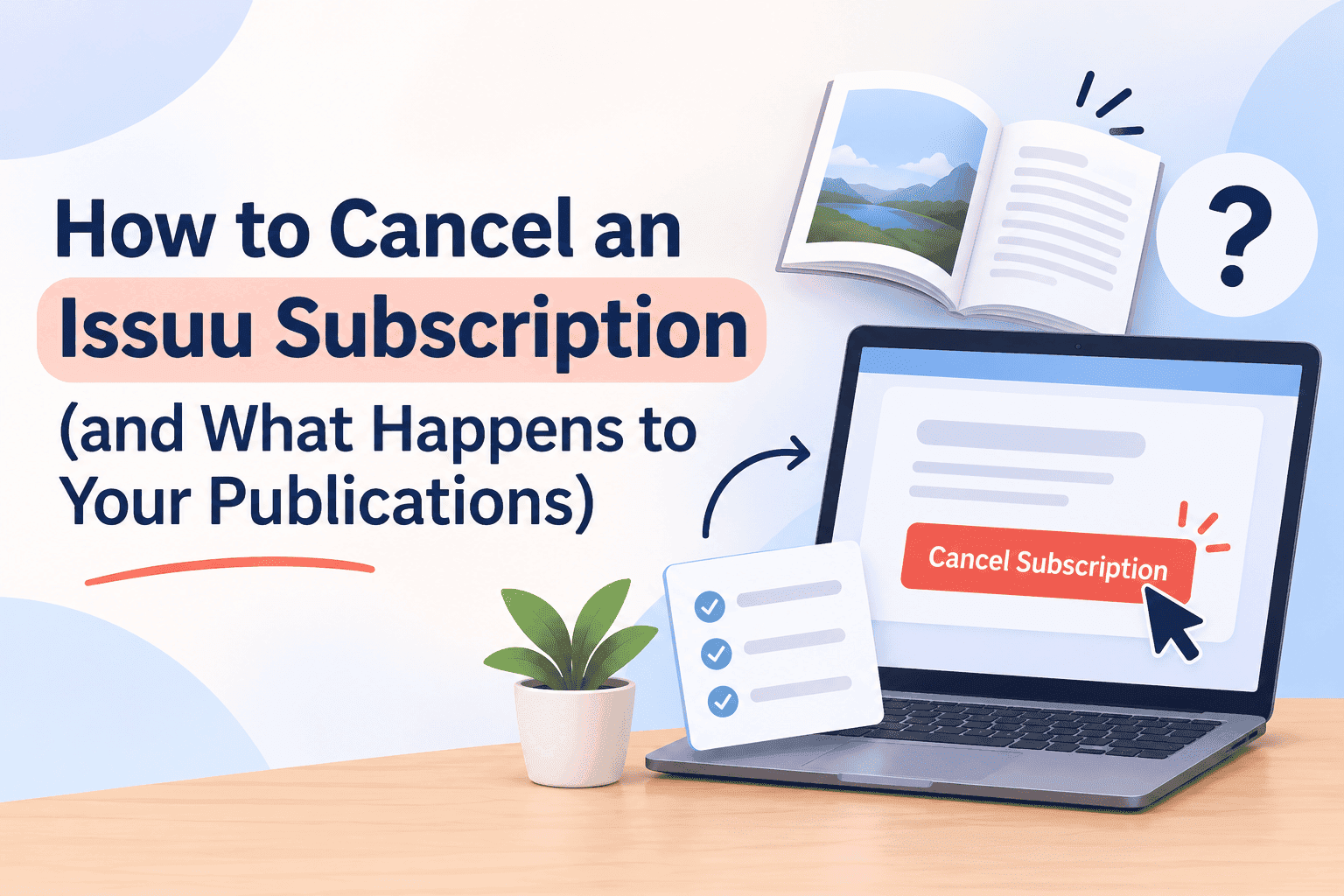
To cancel an Issuu subscription, you log in, open your account settings and downgrade to the free Basic plan. Issuu's own help page says the same thing: cancelling a paid plan or a free trial means moving to Basic. You can't pause a subscription, and deleting your account won't get your money back. Do it before the renewal date, because Issuu treats watching renewals as your job and won't chase you about it. The steps take about five minutes. The part that catches people out is working out where they were billed in the first place, so start there.
Check where you were billed before you cancel
Search your email for "Issuu" and "receipt". The sender on that receipt decides which route you need. A receipt from Issuu means you signed up on the website, and you cancel in your account settings. A receipt from Apple or Google means you subscribed inside the iPhone or Android app, and only the app store can stop it. This mix-up causes more failed cancellations than anything else. Someone downgrades on the website, sees Basic listed against their account, and Apple bills them again three weeks later because the website never knew the app subscription existed.
While the receipt is open, note the renewal date. A free trial you forgot about turns into a paid plan the day the trial ends, and Issuu's help centre says plainly that the trial renews automatically unless you cancel first. Treat the trial end date as your deadline and set a reminder two days before it. Annual plans take the whole year's payment in one go, so a missed date costs far more than it would on a monthly plan.
One more job before you downgrade: make sure you still have your original PDFs. Anything you uploaded years ago from a laptop you've since wiped may only exist on Issuu now. Save every source file somewhere you control. Features tied to a paid plan can disappear once you drop to Basic, and you don't want to find that out while hunting for a download button.
Turn Your PDFs into Lead Generation Machines
Start getting highly-qualified leads from your PDFs and landing pages today. It takes exactly 2 minutes to set up.
No credit card required • Sign up in 10 seconds
How to cancel an Issuu subscription on the website
Issuu has no separate cancel flow for web subscribers. You cancel by moving down to the free Basic plan, and you can do that at any time.
- Log in at issuu.com with the email and password on the account. If you've forgotten the password, use the reset link on the login page first, because you can't reach the plan settings without being logged in.
- Open your account settings from the profile menu at the top right.
- Find the section that shows your plan and billing. Issuu has moved this around and labelled it differently over the years ("Services and Plans" and "Billing" are the names people report), so look for whichever tab shows the plan you pay for and the renewal date.
- Choose the option to change plan and pick Basic, the free tier.
- Confirm the change. Issuu should email you a confirmation, so check your inbox and your spam folder.
- Log back in a day later and check the account says Basic. A confirmation email on its own isn't proof.
Step 6 is the one people skip. Take a screenshot of the plan page showing Basic. If there's ever a dispute over a later charge, that screenshot and the confirmation email are your evidence.
Expect to keep your paid features until the end of the period you've already paid for. Issuu's help pages don't promise a refund for the unused part, so use what you paid for.
How to cancel Issuu on iPhone, iPad or Android
If the receipt came from Apple or Google, Issuu's website can't help you. Do it from the device.
On an iPhone or iPad, open Settings, tap your name at the top, tap Subscriptions, pick Issuu from the list and tap Cancel Subscription. Confirm when asked.
On Android, open the Google Play Store, tap your profile picture or the menu icon, choose Subscriptions (some versions tuck it under Payments & subscriptions), select Issuu and tap Cancel subscription.
If Issuu isn't in the list, you're probably signed into the wrong Apple ID or Google account. Old work accounts, a family member's login and a second Apple ID from years ago all cause this. Check the other accounts before you decide the charge is coming from somewhere else. Both stores show a renews-on or expires-on date once you've cancelled, so you can see straight away whether it worked.
Refund requests for app store charges generally go through Apple or Google, not Issuu. And deleting the Issuu app doesn't cancel anything. The subscription lives on your store account, not on the phone.
What happens to your publications after you cancel
Your publications stay online. Issuu's FAQ says they remain accessible after a subscription expires or you downgrade, so the links you've shared don't go dead overnight, and issues embedded on your website keep loading from Issuu.
What changes is anything tied to the paid plan. I can't tell you exactly which features you'll lose, because Issuu's plans have been reshuffled more than once and the list depends on the tier you were on. So test it. Within a day of downgrading, open your three most important publications in a private browser window and look at what a visitor sees. Check the website pages with embeds too. If something looks different, you want to hear about it from your own test and not from a customer's email.
Think about where your Issuu links actually live: email signatures, Instagram bios, old newsletters, the download page on a client's site. They keep working while the publications stay up, but they're also the reason a clean break takes longer than the cancellation itself.
The free tier is tighter than most people remember, which is part of why so many cancel. The free plan's limits are worth reading before you decide whether Basic is enough or you're leaving altogether.
On refunds, Issuu describes itself as a self-service platform and puts the job of watching renewals on the account holder. Deleting your account doesn't trigger an automatic refund either. If you were charged for a renewal you meant to cancel, contact Issuu support through the help centre within a day or two, give them the date and attach your screenshot. Whether they refund is their call, and asking fast helps. Waiting a month doesn't.
Turn Your PDFs into Lead Generation Machines
Start getting highly-qualified leads from your PDFs and landing pages today. It takes exactly 2 minutes to set up.
No credit card required • Sign up in 10 seconds
When the cancellation doesn't seem to work
You can't find the downgrade option. Check you're logged into the right account. Agencies, designers and former colleagues often set up the Issuu account in the first place, and if it sits under their email or a team they manage, they may be the only person who can change the plan. Ask them, or ask Issuu support to verify you as the owner.
You still got charged. Look at the receipt sender again. Then check for a second Issuu account under a different email address, which is common if you signed up once with a work address and once with a personal one. Each account bills separately, and downgrading one does nothing for the other.
You want to pause. You can't. Issuu's help centre says subscriptions can't be paused or suspended. Downgrade now and resubscribe later if you need paid features again, and your publications stay online in the meantime.
You want the account gone. Downgrade first, confirm Basic, then delete the account if you really want it removed. Deleting refunds nothing, and it should take your publications with it, so make sure every embed and shared link has been replaced before you do.
FAQs
1. How do I cancel my Issuu subscription?
To cancel, log in to your Issuu account, go to your account settings, and change your plan to the free "Basic" tier. There is no separate "cancel" button; downgrading to Basic is the cancellation process.
2. What happens to my publications if I cancel Issuu?
Your publications will stay online and remain accessible to viewers. However, any features tied to your paid plan (like advanced customization or analytics) may disappear once you downgrade to the free Basic plan.
3. How do I cancel an Issuu subscription purchased through the Apple App Store or Google Play?
You must cancel through the store where you subscribed. For iPhone/iPad, go to Settings > [Your Name] > Subscriptions. For Android, go to the Google Play Store > Subscriptions. Canceling on the Issuu website will not stop app store billing.
4. Can I get a refund for my Issuu subscription?
Issuu generally does not offer refunds for unused time. If you were charged for a renewal you meant to cancel, contact Issuu support immediately (within a day or two) with your receipt and a screenshot of your downgrade confirmation. Refunds are at their discretion.
5. Can I pause my Issuu subscription instead of canceling?
No, Issuu does not allow subscriptions to be paused or suspended. You must downgrade to the free plan and resubscribe later if you need paid features again.
6. What happens if I delete my Issuu account?
Deleting your account does not trigger a refund. You should downgrade to the Basic plan first, confirm the change, and then delete the account if you wish. Note that deleting your account will likely remove your publications.