A lot of people land on this topic with a PDF catalogue open in another tab and a vague plan to "put it on Facebook." That plan hits a wall about ten minutes in, because Meta Advantage+ catalog ads don't read PDFs. They read product feeds. A 48-page brochure with beautiful spreads is invisible to Meta's ad system, and no amount of clicking around Ads Manager changes that.
So this post covers how to set up Meta Advantage+ catalog ads for your digital catalog properly: what Meta actually needs, how to build it from the products you already have, how to wire up tracking so the ads can find the right shoppers, and where a flipbook fits once someone clicks. I run ZipFlipbook, so I have a bias, but I'll try to point out where a flipbook helps and where it doesn't.
What Advantage+ Catalog Ads Are (and Why the Name Keeps Changing)
Meta has renamed this format so many times that half the guides online contradict each other. It started as dynamic product ads, which is why you'll still see people say DPA. Then it became Advantage+ catalog ads. In the current Ads Manager flow, the option often shows up as "Products from your catalog" inside a sales campaign, and some Help Center pages call the same thing ads with product media, which you pick under Creative source. The developer documentation still uses Advantage+ catalog ads.
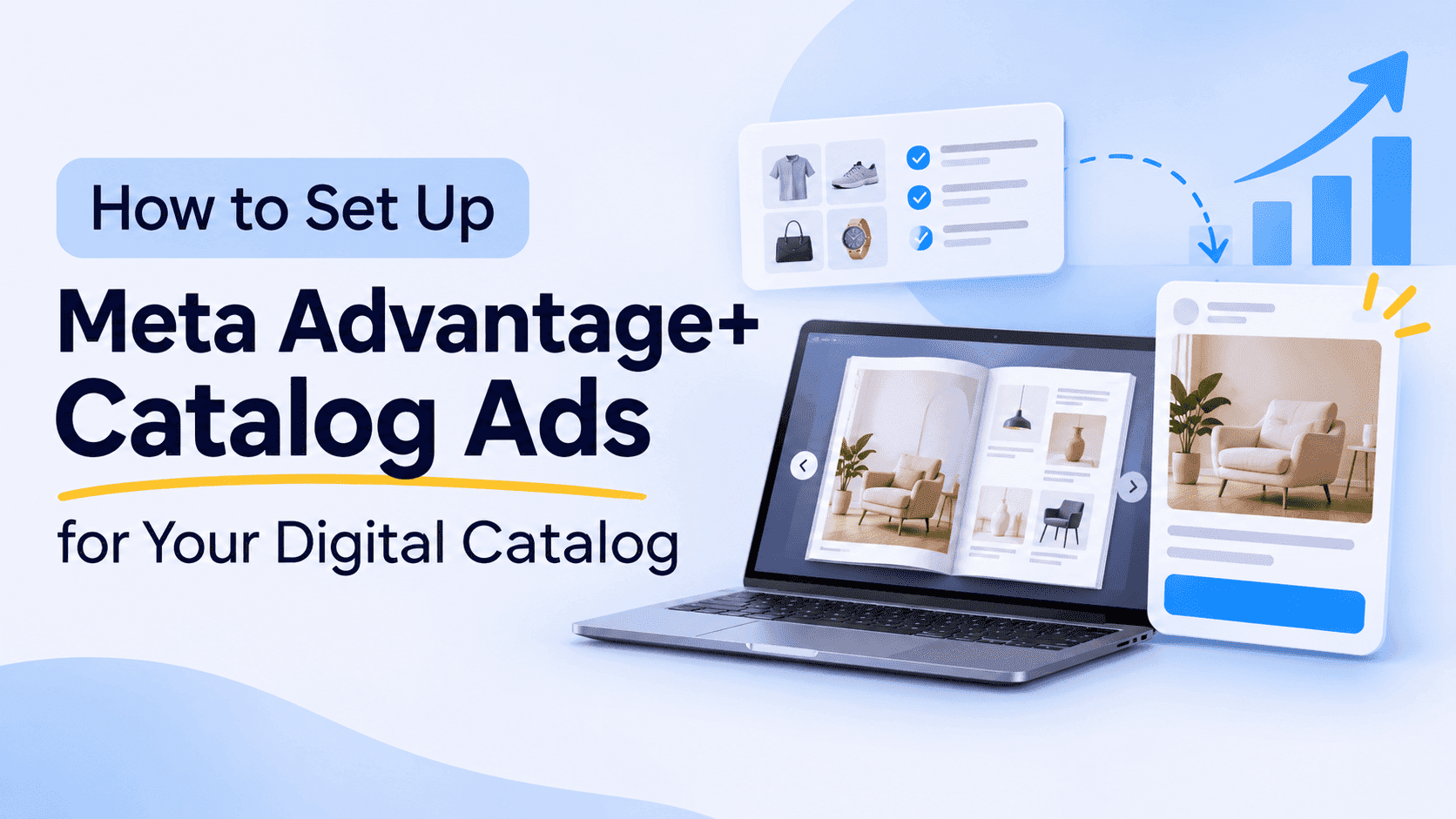
Same machine, different labels. Meta takes a catalog of products, pulls the image, name and price for each item, and assembles ads automatically. Then it decides which products to show to which person, based on what they did on your site or app. Someone who looked at a blue desk lamp and left sees the blue desk lamp. Someone who has never heard of you sees whatever Meta thinks they're most likely to click.
That's the pitch: you don't build 300 ads for 300 products. You build one template and the catalog fills it in.
The confusing part is the word "catalog." In Meta's world it means a structured list of products with IDs, prices and image URLs, managed in Commerce Manager. Your digital catalog, the interactive flipbook you made from a PDF, is something different. It's a presentation. Both matter, but they do different jobs, and mixing them up is the most common reason these campaigns stall.
The Two Catalogs You Need to Keep Apart
Keep two separate assets in view, because they work together.
The first is your product data: a spreadsheet, a Shopify store, a WooCommerce shop, or some other source where every item has a unique ID, a title, a price, a photo and a link to a page where it can be bought or enquired about. This is what Meta ingests.
The second is your flipbook catalogue, the browsable, page-turning version of your range that you send to wholesale buyers, drop into emails or link from your bio. This is where you want people to land when they want to see the whole range rather than a single product page.
Advantage+ catalog ads run on the first one and can send traffic to the second. The setup only stops being confusing once you treat those two things as separate jobs.
If you've made a flipbook from a PDF and you don't have clean product data yet, that's your real first task. Most printed or PDF catalogues were laid out for human eyes, so the prices sit in text boxes, the product codes are tucked into captions and the photos are baked into spreads. You can't upload any of that. You'll need to rebuild the product list in a spreadsheet, one row per item. It's dull work. I did it for a client's 200-line trade catalogue once and it took most of a day, mostly because the same product appeared on three different pages with three slightly different names.
Turn Your PDFs into Lead Generation Machines
Start getting highly-qualified leads from your PDFs and landing pages today. It takes exactly 2 minutes to set up.
No credit card required • Sign up in 10 seconds
Step 1: Build a Meta Product Feed That Passes Diagnostics
Meta wants a minimum set of fields for each product. At the least you'll need a unique ID, a title, a description, availability, condition, a price with currency, a link to the product page, an image link and a brand. Skip any of these and items get rejected, usually with an error message that tells you nothing useful.
A handful of details cause most of the grief later:
The ID is permanent. Pick a SKU or product code and never change it. Your tracking will use the same ID, and if the two don't match exactly, Meta can't connect a person who viewed a product to the product in your catalog. That mismatch is behind a big share of "my catalog ads aren't delivering" complaints. A trailing space or a capital letter is enough to break it.
Image URLs need to be public and stable. If your photos live behind a login or on a page that redirects, Meta can't fetch them. Square images, 1024 by 1024 pixels or larger, are the safe choice. Crop out the lifestyle clutter, because on a phone these thumbnails are small.
The link has to go somewhere real. A product page is best. If you sell through quotes or enquiries rather than a checkout, link to a page for that product with a clear contact route, or, as I'll cover below, to the flipbook opened at the right page.
If your products already live in Shopify, WooCommerce, Magento or BigCommerce, don't build a feed by hand. Commerce Manager has a partner platform connection that syncs the catalog automatically, and edits to prices or stock flow through. For everyone else, upload a CSV or Google Sheet and set a schedule so Meta re-fetches it daily. A stale feed shows ads for products you no longer stock, and nothing annoys a customer faster. If you don't run a store platform at all, the no-code route in this guide to digital product catalogs for small retailers is a reasonable way to get the product list organised first.
Step 2: Create Your Catalog in Meta Commerce Manager
Open Commerce Manager from your Meta Business portfolio and choose to add a catalog. Pick the type that matches what you sell, which for most people is e-commerce products. Then you'll be asked how to add items: connect a partner platform, upload a data feed, or enter items manually.
Manual entry is fine for ten products and miserable for a hundred. Use a feed.
Once the products are in, check the Diagnostics tab. Meta flags missing fields, broken image links and mismatched currencies there. Fix errors before moving on, because a catalog with half its items rejected will quietly run ads for the half that survived, and you won't notice until the numbers look odd.
One permission trap: if you can't see your catalog when you try to select it in Ads Manager, your user probably lacks Product Catalog Admin rights in Business Manager. It's a two-minute fix once you know, and a baffling afternoon if you don't.
Step 3: Connect the Meta Pixel or Conversions API for Catalog Ads
This is the step that decides whether the ads can retarget anyone at all or just show a generic product grid. Advantage+ catalog ads need to know what people do on your site, specifically three events: ViewContent when someone looks at a product, AddToCart when they add one, and Purchase when they buy. Each event must carry the product ID, and that ID must match the one in your feed.
You can fire these with the Meta Pixel, the Conversions API, or ideally both together, since browsers and ad blockers drop a fair amount of pixel data. If you use Shopify or WooCommerce, the official Meta integration handles most of this for you. On a custom or headless site, someone has to add the code, and then you test with Meta's Events Manager, checking that a product view shows the right ID.
No purchases on the site? If you run an enquiry-based business, you can still use ViewContent and swap Purchase for a Lead event. The retargeting works the same way: people who viewed a product get shown that product again.
A quick test I'd never skip: open your own site in a private window, click a product, then open Events Manager and watch for the event arriving. Check the ID. Do this before spending a penny on ads.
Step 4: Build Product Sets for Retargeting and Prospecting
A product set is just a filtered slice of your catalog, nothing more exotic than that. You might make one for bestsellers, one for items under a certain price, one for a seasonal range. You build them because advertising every item to every audience is usually a waste of budget.
For a business with a printed-style catalogue, the sets often mirror the chapters. Kitchen, Bathroom, Outdoor. If you're a garage or dealership working from a spec-sheet brochure, you might split by vehicle type. Build them with filters on category, brand, price or a custom label you add in the feed. Custom labels are underused. Add a column called custom_label_0, mark your high-margin lines, and you can send more budget to them later without touching the catalog.
Step 5: Set Up the Advantage+ Catalog Campaign
In Ads Manager, create a new campaign with the Sales objective. At this point you have two routes through Ads Manager.
The automated route is an Advantage+ sales campaign. You connect the catalog, set a budget and a target, and Meta handles audience and placement decisions. It's quicker and for most small catalogs it's the better starting point.
The manual route is a standard sales campaign where you switch on the catalog option at campaign level. You pick the audience, placements and product sets yourself. Choose this if you want a clean retargeting ad set that only reaches people who viewed products in the last 14 days, kept separate from a cold prospecting set.
For most small catalogs, I'd start with three ad sets. One retargets people who added to cart but didn't buy. One retargets people who viewed products. One prospects cold audiences, using broad targeting or lookalikes built from past buyers. Keep budgets weighted toward the first two at the start, since warm audiences convert at lower cost and you'll learn faster.
At the ad level, choose the catalog as the source for your creative. You'll pick a format: carousel, single image, or collection. Collection ads open a full-screen mobile experience with a hero image or video above a grid of products, and they suit a browsable range better than a single image does.
Then the template. Pick which fields appear (price, name, a short description), add your logo, and write the primary text. Keep that text short and specific. "Free delivery on orders over £50" outperforms "Discover our amazing range" almost every time, and I'd be wary of anyone who tells you otherwise without data.
Step 6: Choose Where Catalog Ad Clicks Land
The flipbook becomes useful at the destination step, not the feed step.
By default, each product in an ad links to its own page. That's right for someone who wants to buy that one thing. But plenty of visitors, especially in B2B, wholesale or trade settings, want to see the surrounding range before committing. Sending them to a single product page can feel like a dead end.
I'd use one of two destination setups: You can set the ad's destination to your flipbook catalogue, so the click opens the whole browsable range. Or you can keep product-level links in the feed and add a "See the full catalogue" link in the ad copy or on the product page. If your site runs on Shopify, I've written up how to embed a PDF flipbook in Shopify without an app, which keeps the catalogue on your own domain so the Pixel keeps firing and your retargeting audience keeps growing.
That last point is not a small technical detail: if the flipbook lives on a domain you don't control, you lose the pixel data that builds your retargeting audience. Meta's Pixel can't see what happens there, so your audience of "people who looked at the catalogue" never forms. Embedding it on your own pages, or at least tracking the visit with a pixel you can install, solves that.
Interactivity is worth adding for the same reason: it shortens the path from browsing a spread to viewing a product. If the pages inside your flipbook carry clickable product hotspots, a visitor can jump straight from a spread to the right product page. Hotspots are straightforward to add, and I walk through how to make a shoppable digital catalog in detail.
Turn Your PDFs into Lead Generation Machines
Start getting highly-qualified leads from your PDFs and landing pages today. It takes exactly 2 minutes to set up.
No credit card required • Sign up in 10 seconds
Step 7: Measure Post-Click Behavior in Your Flipbook
Ads Manager will tell you clicks, cost per result and return on ad spend. It won't tell you much about what people did inside a catalogue once they got there, which is the part that explains why one product set outperforms another.
Flipbook analytics are what tell you what happened after the click. Seeing which pages hold attention, where readers drop off and which spreads get revisited gives you something to feed back into the ads. If page 14 is where everyone lingers, put those products in your lead product set. If nobody gets past page 6, the issue isn't the ad. I wrote about how to track PDF opens for free if you want to see what's possible without paying for a heavy analytics tool.
Give the campaign time before you judge it. Meta's system needs a few days and a reasonable number of conversions to leave its learning phase, and changing budgets or swapping creatives every morning resets the clock. I've watched people kill a perfectly decent campaign on day three because the first 72 hours looked rough.
Common Meta Catalog Ad Mistakes I See Again and Again
The worst offender is still mismatched IDs. The next most common failure is a feed that never updates, so prices in the ad differ from the price on the site, which is both annoying for shoppers and a policy problem for Meta.
Bad product photography is the third repeat offender. Automated ads are only as good as the pictures you feed them, and these design tips for product catalogs cover the basics. A cluttered, dark or tiny image won't be rescued by clever targeting.
Then there's judging results too early, and the reverse, leaving a bad campaign running for a month because "the algorithm is learning." If you've had a few hundred pounds of spend and no add-to-carts, something is broken upstream, and it's usually the tracking.
Finally, treating the flipbook as the ad. People sometimes want to promote the catalogue itself, with page-turning screenshots as the creative. That can work as a standard traffic ad, but it isn't a catalog ad, and it won't get the dynamic, per-person product selection that makes Advantage+ catalog ads worth the effort.
Does this make sense for a small business?
The honest answer depends on product count and budget. With a range of five items and a £5 daily budget, a plain image ad pointed at a good landing page will probably do as well. Catalog ads shine once you have dozens of products, a decent stream of site visitors and enough budget for Meta to learn from. Somewhere north of £10 to £20 a day tends to be the point where automation has something to chew on.
If you're in that range, most of the work happens before you spend much: clean feed, correct tracking, sensible product sets. After that the system does the repetitive bit for you, and your job becomes feeding it better photos, fresher stock data and clearer offers.
And if you do have a flipbook catalogue sitting unused, this is a reason to dust it off. Use the product-level ads to win the click, then let the catalogue do the browsing and persuading once people are in.
FAQ: Meta Advantage+ Catalog Ads
Can I upload a PDF catalogue directly to Meta as a product catalog? No. Meta needs structured product data (IDs, prices, image links), not a PDF. Rebuild the product list in a spreadsheet and upload that as a feed.
What's the difference between Advantage+ catalog ads and dynamic product ads? No material difference. Dynamic product ads is the older name, and Meta now labels the same format Advantage+ catalog ads or "Products from your catalog" in newer menus.
How much do I need to spend on Advantage+ catalog ads? There's no fixed minimum beyond Meta's daily budget floor, but under roughly £10 a day the system gets too little data to optimise well. Start around £15 to £20 if you can.
Do I need a Meta Pixel for catalog ads? Yes, or the Conversions API. Without ViewContent, AddToCart and Purchase events carrying matching product IDs, you lose the retargeting that makes catalog ads worth running.
Can I send catalog ad clicks to a flipbook instead of a product page? Yes. Set the destination to your flipbook URL, or link to it from the product pages. Hosting it on your own domain keeps your Pixel data intact.
Why are my catalog ads not delivering? Check three things first: rejected items in Commerce Manager Diagnostics, product IDs that don't match between feed and Pixel, and missing Product Catalog Admin permissions on your user.
Turn Your PDFs into Lead Generation Machines
Start getting highly-qualified leads from your PDFs and landing pages today. It takes exactly 2 minutes to set up.
No credit card required • Sign up in 10 seconds
Before you spend the first pound
Get the feed right, test the Pixel in a private window, start with a small retargeting set and give it a week. Then bring the catalogue in as the place people land when one product isn't enough. Meta handles who sees what. Your flipbook handles what happens when they arrive.