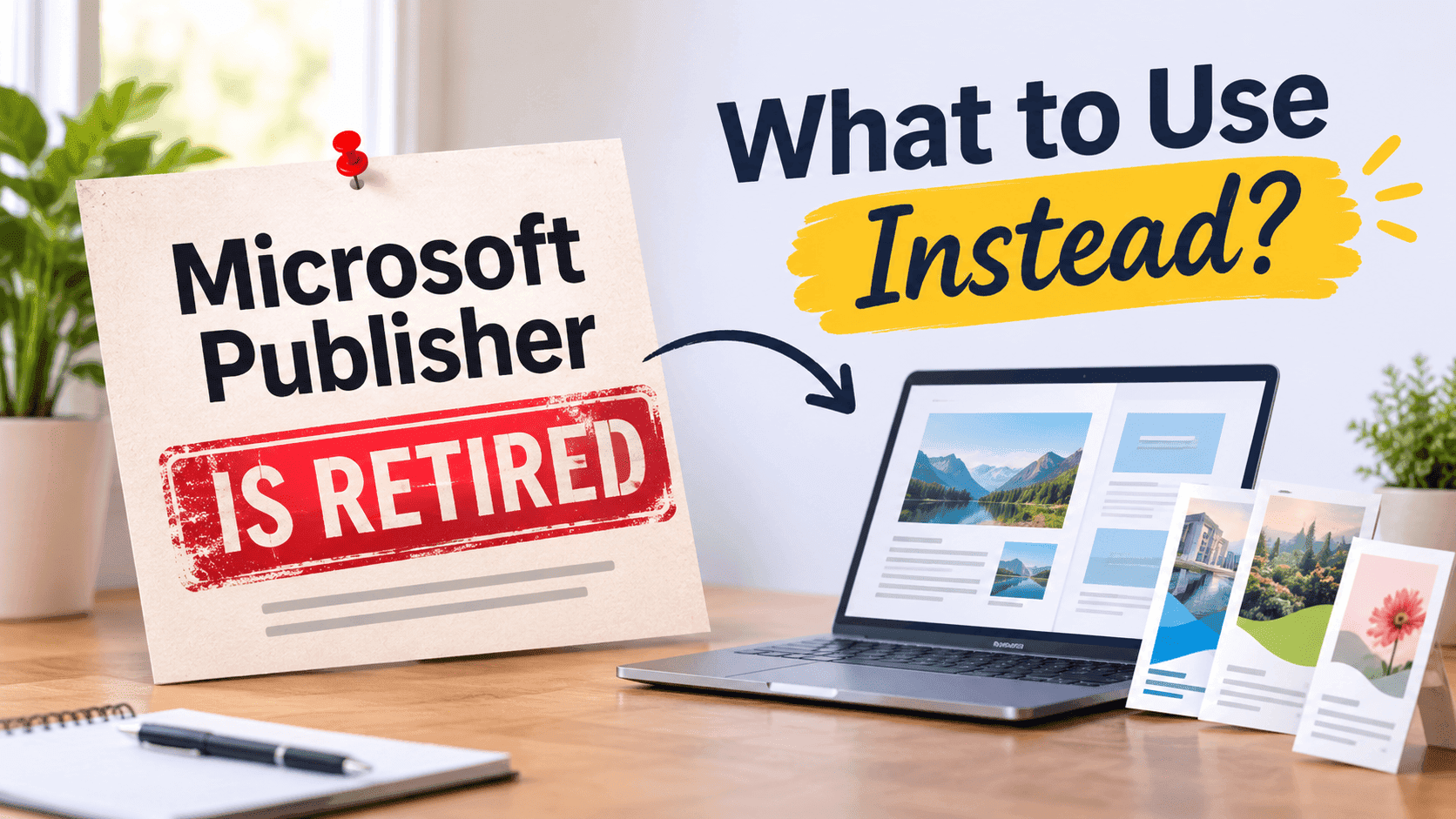
Microsoft Publisher is retired. Since October 1, 2026 it is no longer part of Microsoft 365, and if you pay for a subscription you can't open or edit a .pub file in it any more. If you woke up this month to a price list, a club newsletter or a trifold you can't change, you're in good company, and it is fixable. This post covers how to get your old files out, what to use instead of Publisher for the things you actually made in it, and how to stop emailing 30MB PDFs around.
Publisher was never anyone's favourite design tool. It was the one that was already installed. It sat in the Office bundle for 30 years and quietly became the place where every small business, school office, church hall and village committee made their leaflets. The templates were dated, the fonts were whatever you had, and it did the job. Now it doesn't exist, so let's deal with it.
What changed on October 1, 2026
Microsoft announced the retirement a long time ago, which is why so many people ignored it. The date came and went. Publisher was removed from Microsoft 365 subscriptions, and from that point a subscriber can't create, open or edit .pub files with it.
There is one exception. If you bought a standalone copy of Publisher 2016, 2019 or 2021, it still installs and still opens files. Microsoft just won't update or support it. That's a perfectly reasonable way to buy yourself a year or two, as long as you treat it as a delay and not a plan. A copy of software that gets no security patches on a machine that touches the internet is a short-term fix at best, and the next Windows update can break an unsupported app without anybody apologising.
The files themselves haven't vanished. A .pub file is still sitting on your drive, in OneDrive, or in a SharePoint folder that someone set up in 2017 and nobody has opened since. What you've lost is the program that understands them. Very little other software reads .pub natively, which is the whole problem.
Turn Your PDFs into Lead Generation Machines
Start getting highly-qualified leads from your PDFs and landing pages today. It takes exactly 2 minutes to set up.
No credit card required • Sign up in 10 seconds
Get your old .pub files out first
Before you shop for anything, deal with the archive. If you've got Publisher on a machine that still works, open the files there and export them while you can.
Search your computer, OneDrive and SharePoint for *.pub. You will find more than you expect. The usual haul in a small business is a price list from several years ago, a few flyers with a different phone number on each, a letterhead, and one file called "final FINAL v3" that is the only copy of something important.
For each one you need to decide what it is. A document you'll never edit again, like an old newsletter or a poster for an event that happened, should become a PDF and then be left alone. Save As, pick PDF, done. Microsoft also published a PowerShell script that converts a whole folder of .pub files to PDF in one go, which is worth knowing about if you have hundreds. Anything you'll want to edit in future needs a different treatment, because a PDF is a photograph of a document and not the document itself.
For files that you need to keep editing, you've got a few routes. LibreOffice Writer can import .pub files, and so can the open-source layout program Scribus. Neither import is perfect. Expect text boxes that have drifted, fonts swapped for something similar, and images that have moved a few millimetres. For a simple one-page flyer the result is usually fine. For a 16-page catalogue with wrapped text around pictures, you'll be doing repairs, and you may decide it's faster to rebuild it from scratch in whatever you're moving to.
If Publisher is still working on a PC you own, do this today and not next month. Convert the lot to PDF, keep the .pub originals in a folder named something obvious, and then you can take your time choosing the replacement.
What to use instead of Publisher
The right answer depends on what you were making. People used Publisher for about six different jobs, and no single tool replaces all of them equally well. Here's how I'd split it.
Word, for anything that's mostly text
If your Publisher files were newsletters, letters with a logo, simple flyers or menus, Word is the shortest path. You already have it, your team already knows it, and Microsoft's own advice for most people is to move to Word or PowerPoint. Word's layout is better than its reputation: text boxes, columns, picture wrapping and page borders all work. It starts to hurt when you need precise placement of lots of elements, because Word wants to flow everything like a document and will fight you when you try to treat the page like a canvas.
If your content is mainly text with a few pictures, stay in Word and use a decent template. If you find yourself nudging boxes by single pixels, you've outgrown it.
PowerPoint, for posters and one-page layouts
This sounds odd until you try it. PowerPoint is a page-layout program that has been pretending to be a slide tool for years. You can set a custom slide size, say A4 or A5 or a poster format, drag things wherever you like, group them, align them and export a clean PDF. For posters, flyers, certificates, table talkers and social images it's often easier than Word, because nothing reflows unexpectedly. Multi-page brochures work too, one page per slide. Print shops will happily take a PDF from it.
The catch is that PowerPoint has no real concept of body text running across pages, so a long newsletter with articles that continue on page 4 is miserable. Keep it to layouts where each page stands alone.
Canva, for people who want it to look good without a design degree
Canva is where most of Publisher's casual users have gone, and it makes sense. The templates are far better than anything Publisher shipped, it works in a browser, and sharing a design with a colleague is a link and not an email attachment. The free plan covers a lot. The paid plan adds things like brand kits, a resize tool and a bigger stock library.
The weaknesses are print precision and ownership. Canva's print handling has improved, but if you need exact bleed, specific colour profiles or CMYK output, you'll want to check the export settings carefully, and your files live inside Canva's system rather than as something you can open in ten years with any program. That's the same trap you've just fallen into with .pub, so export PDFs of everything finished and keep them. We've written a walkthrough on how to make a pamphlet in Canva if you want to see the process from blank page to export.
Scribus, for free and print-ready
Scribus is the closest thing to a free Publisher replacement in spirit. It's real desktop-publishing software with proper text frames that link across pages, CMYK support, bleed marks and press-ready PDF export. It also imports .pub files, so it's a sensible place to open your old work. The price is the learning curve. The interface looks like it was designed in 2004 because, broadly, it was. If you're comfortable learning software and you want print-grade output for nothing, it's excellent. If you wanted something you can pick up in an afternoon, skip it.
Turn Your PDFs into Lead Generation Machines
Start getting highly-qualified leads from your PDFs and landing pages today. It takes exactly 2 minutes to set up.
No credit card required • Sign up in 10 seconds
Adobe InDesign, for the people who print professionally
InDesign is what designers use, and if your publications go to a commercial printer in volume, it's the standard for a reason. Master pages, paragraph styles, tables of contents, linked images and every print option you could want. It's also subscription-only, it takes weeks to learn properly, and it is far more than a village newsletter needs. Buy it if layout is a regular part of your job. For a business that makes two leaflets a year it is a lot of money and effort for a flyer.
The part Publisher never handled: getting it to people
Here is something Publisher's retirement makes obvious. The design tool was never the hard part. Getting the finished thing in front of people was.
Think about how a Publisher document normally travelled. You exported a PDF, attached it to an email, and discovered it was 28MB and bounced. So you compressed it until the photos looked like they'd been faxed. Or you uploaded it to your website as a download link and had no idea whether anyone ever opened it. Or you printed 500 copies and handed them out, with no way of knowing which ones went straight in the bin.
That workflow carries over unchanged to whatever tool you pick next. Word, Canva and InDesign all hand you a PDF at the end, and a PDF is a static file. Nobody can tell you who read it, which page they stopped at, or whether anyone clicked the phone number.
This is the problem I built ZipFlipbook to solve. You upload the PDF you've exported from any of the tools above and it turns into a page-turning online flipbook with a shareable link. The link works on a phone without anyone pinching and zooming a tiny A4 page, and it doesn't come with the file-size limits of an email attachment. You can embed videos and links, collect an email address before someone reads (useful for price lists you'd rather not give away to anyone who stumbles across them), and see which pages people look at. The free tier is free with a small watermark and ads. If you want a rundown of the other options in this space, the post on the best free digital brochure software for small business goes through them.
If your Publisher output was mainly leaflets and pamphlets, the best free digital pamphlet makers post is the more relevant one.
It isn't a replacement for Publisher, and I'd be lying if I pitched it as one. You still need something to design in. It sits after that step and fixes the part that was always clumsy.
Matching the replacement to what you made
It's easier to decide by looking at your own files than by reading a tool comparison, so here's the sorting I'd do.
If most of your .pub files are newsletters and letters, move to Word and rebuild them once from a clean template. You'll lose an hour and gain a file format everyone can open.
If they're flyers, posters and event signs, try Canva first and PowerPoint second. Canva if you want it to look polished with little effort, PowerPoint if you want full control and already live in Microsoft 365.
If they're multi-page brochures or catalogues with serious layout, you have two honest choices. Rebuild in Canva if the design is simple, or learn Scribus or InDesign if you need print-grade control. Importing the old .pub into Scribus can save time on the first pass.
If they're menus, price lists and anything customers read on their phones, think about whether it needs to be a printed page at all. A flipbook link, or a QR code on the table pointing to one, saves reprinting every time a price changes.
Whatever you choose, keep the master files in a format that doesn't depend on one vendor's subscription, and export a PDF of every finished version. That's the lesson of Publisher. The files outlived the software that made them by about five minutes of corporate announcement.
Mistakes people make when switching
The most common one is converting everything. Most of what's in an old Publisher folder is dead. Last year's Christmas opening hours do not need migrating. Sort the archive first, convert what matters, and delete the rest.
The second is picking the most powerful tool because it feels like the safe choice. People who made a monthly one-page flyer in Publisher end up with an InDesign subscription they open twice. Pick the weakest tool that does the job.
The third is trusting an import. If you open a .pub in Scribus or LibreOffice and it looks about right, check every page before you delete the original. Fonts and spacing drift in ways that are easy to miss until the document is at the printer.
And the fourth is forgetting the people who worked with you. If three staff members each had their own Publisher templates, find out before they do, and agree on one new tool, with one shared template folder. Otherwise you swap one mess for three.
Turn Your PDFs into Lead Generation Machines
Start getting highly-qualified leads from your PDFs and landing pages today. It takes exactly 2 minutes to set up.
No credit card required • Sign up in 10 seconds
Frequently asked questions
Is Microsoft Publisher still available?
Not in Microsoft 365. It was removed from subscriptions on October 1, 2026. Standalone copies of Publisher 2016, 2019 and 2021 still run, but they get no support or updates.
Can I still open .pub files?
Only if you have Publisher installed, either an older standalone version or a machine that hasn't lost it yet. LibreOffice and Scribus can import .pub files, though layouts often shift a little.
What is the best free alternative to Microsoft Publisher?
For most people, Canva's free plan. For print-ready multi-page work on no budget, Scribus. If you just need to read old files, LibreOffice does the job.
What does Microsoft recommend using instead of Publisher?
Word, PowerPoint and Designer for most jobs, plus PDF as the format for keeping old files. For heavy print work, Adobe InDesign is the usual suggestion.
How do I convert Publisher files to PDF?
Open the file in Publisher, choose Save As, and pick PDF. For a folder full of files, Microsoft provides a PowerShell script that batch-converts them.
Can I turn a Publisher document into an online flipbook?
Yes. Export it to PDF first, then upload the PDF to ZipFlipbook and it becomes a shareable page-turning link, no email attachment needed.
Wrapping up
Microsoft Publisher is retired, and nothing about that is a disaster if you handle the files first and the tool second. Export your .pub archive to PDF while you still can, work out which documents you'll need to edit again, and pick the simplest replacement that covers them. For most people that's Word, PowerPoint or Canva. For print-heavy work it's Scribus or InDesign. Once the design is finished, a flipbook link on ZipFlipbook handles the sharing part that Publisher left to a bounced email.