Somewhere around my third client meeting last spring, a boutique owner slid her laptop across the table and said, "This is my lookbook." It was a 40MB PDF sitting on Dropbox, and the "call to action" was a sentence at the bottom asking people to email her. No product links. No way to know if anyone had even opened it past page two. She'd paid a freelance photographer and a designer a combined few thousand pounds to produce something that, functionally, lived nowhere.
That's the story behind most lookbooks I see. Beautiful photography, real budget behind it, and then it gets dumped as a PDF link in an email footer or, worse, printed and left to gather dust at a trade show. Meanwhile the actual storefront — the Shopify or WooCommerce site the brand spent months building — has zero trace of it.
If you're selling apparel, home goods, jewellery, anything with a seasonal collection, a lookbook is one of the highest-leverage pieces of content you'll ever commission. But only if people can actually flip through it on your site, tap a product, and buy it. This post is about closing that gap — the practical, slightly annoying mechanics of getting a lookbook embedded properly on Shopify and on WooCommerce, plus what "properly" should even mean.
Why a Raw PDF Link Doesn't Cut It
Here's what actually happens when you just drop a PDF link and call it a day.
First, mobile. Most fashion and lifestyle brands get 60-75% of their traffic from phones. A PDF opened on a phone browser either downloads to a folder nobody checks, or opens in a cramped viewer where pinch-zooming a full-bleed spread is its own small punishment. Pages built to be seen at double-page-spread size get squashed into a scroll of illegible thumbnails.
Second, no path to purchase. A lookbook's entire job is to make someone want something, right at the moment they're feeling that want. A static PDF has no product links, no "shop this look" button, nothing. You're generating desire and then throwing away the moment it happens.
Third, you get no data back. You spent money producing this thing. Did anyone look at page 14, where the new outerwear collection is? Did people bounce after the cover? A PDF tells you nothing. It's a black box you paid for.
And fourth — file size and page speed. This one catches people off guard constantly. A 30-40MB PDF linked directly, or worse, embedded via an iframe that loads the whole file at once, will tank your Shopify or WooCommerce page load time. Google notices. Your bounce rate notices. Your ad quality score notices.
What "Embedding a Lookbook" Actually Means
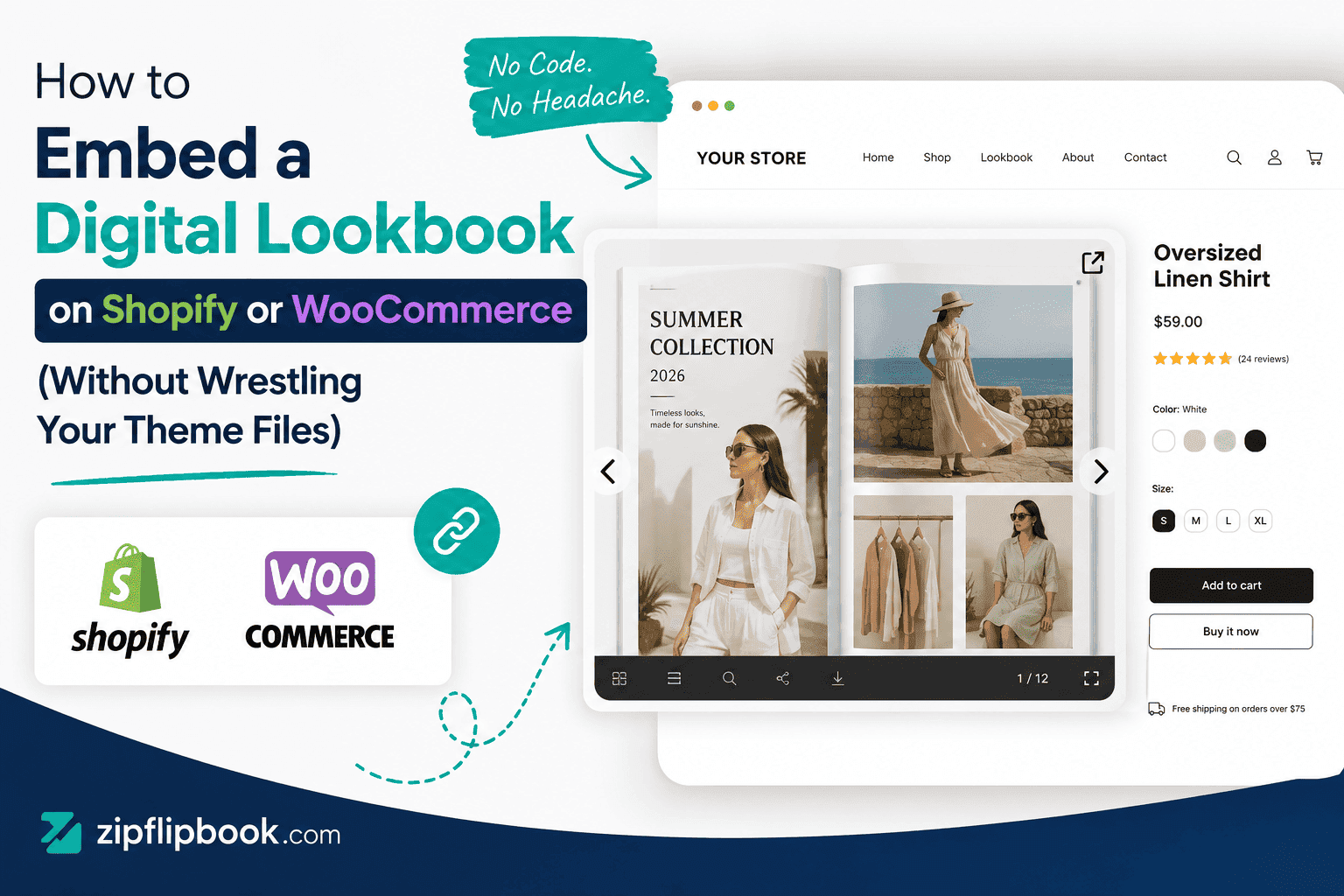
Embedding isn't just sticking a link in a button. Done right, it means converting your PDF into a page-flip format that loads progressively (so page one shows fast even if there are sixty pages), renders cleanly on a phone screen with swipe gestures instead of pinch-zoom, and lives inside your own site as a widget — not a redirect to some other domain that looks nothing like your brand.
Full disclosure: this is exactly why I built ZipFlipbook. I got tired of watching lookbooks rot as PDF attachments. You upload the PDF, it converts to a flipbook, and you get a simple embed code — no developer needed, no recurring app fee, and it's free to start. The mechanics below apply whether you use it or something else, but I wanted to be upfront about where I'm coming from.
Embedding on Shopify
Shopify makes this more fiddly than it needs to be, mostly because Liquid templates and the theme editor weren't designed with third-party embeds in mind. Here's the path that actually works without breaking your theme.
Option one: a custom page with an embedded HTML block. Go to Online Store > Pages > Add page. In the page content editor, switch to "Show HTML" (it's the <> icon in the toolbar, easy to miss). Paste your iframe embed code there. Something like:
<iframe src="https://zipflipbook.com/view/your-lookbook-id" width="100%" height="800" frameborder="0" allowfullscreen></iframe>
Save, and Shopify will render the flipbook inside that page. Add it to your navigation menu under something like "Lookbook" or "Collection Preview," and you're done in about ten minutes.
Option two: embed it inside a product collection page. This is the better move if you want the lookbook to actually drive sales rather than just exist as a standalone page. Some themes let you add a custom Liquid section; if yours does, you can drop the iframe into a section template and place it above your collection grid, so someone flipping through the lookbook lands directly on the product listings underneath. If your theme doesn't support custom sections easily, a rich-text/HTML block app (there are several free ones in the Shopify App Store) will let you insert the same iframe code into any page section.
A word on theme conflicts. Some Shopify themes apply CSS that squashes iframes to zero height or hides overflow content. If your embed shows up as a blank white box, check your theme's CSS for iframe { display: none } or similar overrides — this is a known headache with a few older Shopify 1.0 themes. Setting an explicit height (like the 800px above) in the iframe tag itself usually fixes rendering, even if the surrounding container tries to collapse it.
Don't forget mobile preview. Shopify's theme editor has a mobile toggle — use it before you publish. A flipbook that looks gorgeous on desktop can render oddly narrow on phone if the iframe width is set to a fixed pixel value instead of a percentage. Always use width="100%".
If your product catalog and lookbook overlap — say the same pieces appear in both — you might find it worth reading through this walkthrough on embedding a PDF product catalog on Shopify, since a lot of the same theme quirks apply there.
Embedding on WooCommerce
WooCommerce, being a WordPress plugin, gives you more flexibility and honestly fewer surprises than Shopify's Liquid ecosystem — but the flexibility comes with its own way of shooting yourself in the foot.
The block editor route. If you're on a reasonably current WordPress version, open the page or post where you want the lookbook, and add a "Custom HTML" block (search for it in the block inserter, the + icon). Paste the iframe code directly into that block. WordPress will render it live in the editor preview, which is genuinely useful for catching sizing issues before you publish.
The classic editor / widget route. If you're still on the classic editor, or want the lookbook in a sidebar or footer widget rather than in-page, go to Appearance > Widgets and add a "Custom HTML" widget to whichever widget area you want. Same iframe snippet applies.
The biggest WooCommerce gotcha? Page builder plugins. If your site runs Elementor, Divi, or WPBakery, don't fight the native WordPress editor — use that builder's own HTML/embed widget instead, dragged into the layout where you want it. Pasting raw iframe code into a builder's text widget (as opposed to its dedicated HTML widget) is the single most common reason people report the embed "not showing up" — the text widget escapes the HTML instead of rendering it.
Security plugin conflicts. This one's less obvious. Some WordPress security plugins (Wordfence and a few others) apply "iframe restriction" rules by default that block third-party embeds unless you explicitly whitelist the domain. If your lookbook works fine when previewed but disappears on the live site, check your security plugin's iframe or embed whitelist settings before you assume it's a coding issue.
Placing it on a product page vs. a standalone page. For WooCommerce specifically, you can add the Custom HTML block directly into a Product's short description or a custom tab (via a plugin like WooCommerce Product Tabs) — meaning someone browsing a single dress or jacket can flip through the full seasonal lookbook without leaving the product page. That's a genuinely good conversion move, because it keeps the "Add to Cart" button one scroll away from the inspiration that got them there in the first place.
Since WooCommerce sites are WordPress at their core, most general WordPress embedding gotchas apply here too — plugin conflicts, caching plugins stripping iframe attributes, that sort of thing. I've written more on the WordPress-specific side of embedding PDFs for free here if you want the deeper troubleshooting list.
Making the Lookbook Actually Sell
Getting the embed right is step one. Step two is making sure the damn thing actually sells something.
Add clickable hotspots or links on individual pages that jump straight to the matching product listing — this is where a plain PDF viewer fails and a proper flipbook tool earns its keep, since most support clickable links baked directly into the page. If someone's looking at page 9 and loves the coat, they shouldn't have to remember it, close the lookbook, and go search your catalog from scratch. That's exactly the kind of friction that kills an impulse purchase.
Track which pages get the most engagement. If your outerwear spread gets three times the views of your accessories page, that's a signal for what to stock heavier next season, not just a vanity metric.
Capture an email before or after the flip-through, especially if the lookbook represents a pre-launch collection. A simple "get early access" gate on the cover page turns a piece of marketing collateral into a list-building tool.
And keep the file size sane before you convert. Compress your images to reasonable web resolution (2000px on the long edge is plenty for a lookbook spread) before uploading — bloated source files make even a well-built flipbook slower than it needs to be.
Fashion Brands Have Specific Needs Here
Lookbooks aren't generic brochures, and if you're in apparel specifically, the presentation choices — full-bleed photography, minimal text, seasonal pacing — matter more than they do for, say, a hardware catalog. I went into more depth on the fashion-specific side of this, including how brands are structuring digital lookbooks around drop culture and pre-order windows, in this piece on digital lookbooks for fashion and apparel brands, if that's closer to your situation than the technical embedding question.
The Short Version
A lookbook that lives as a PDF attachment is a sunk cost sitting in a folder. Converted into a flipbook and embedded properly — with sensible page load, mobile-friendly rendering, and product links baked in — it becomes an actual sales tool that sits inside the store you already built traffic to. Shopify wants the HTML embed dropped into a page or, better, a collection template. WooCommerce wants the Custom HTML block, ideally on the product page itself so the "buy" moment is one tap away from the "want" moment.
If you've got a PDF sitting in a folder right now and just want an embed code without fiddling with settings, ZipFlipbook does the conversion for free and gives you the same iframe snippet I've been talking about. Upload it, grab the code, paste it into whichever platform you're on. That boutique owner from the trade show, incidentally, did exactly that with her next season's lookbook — and