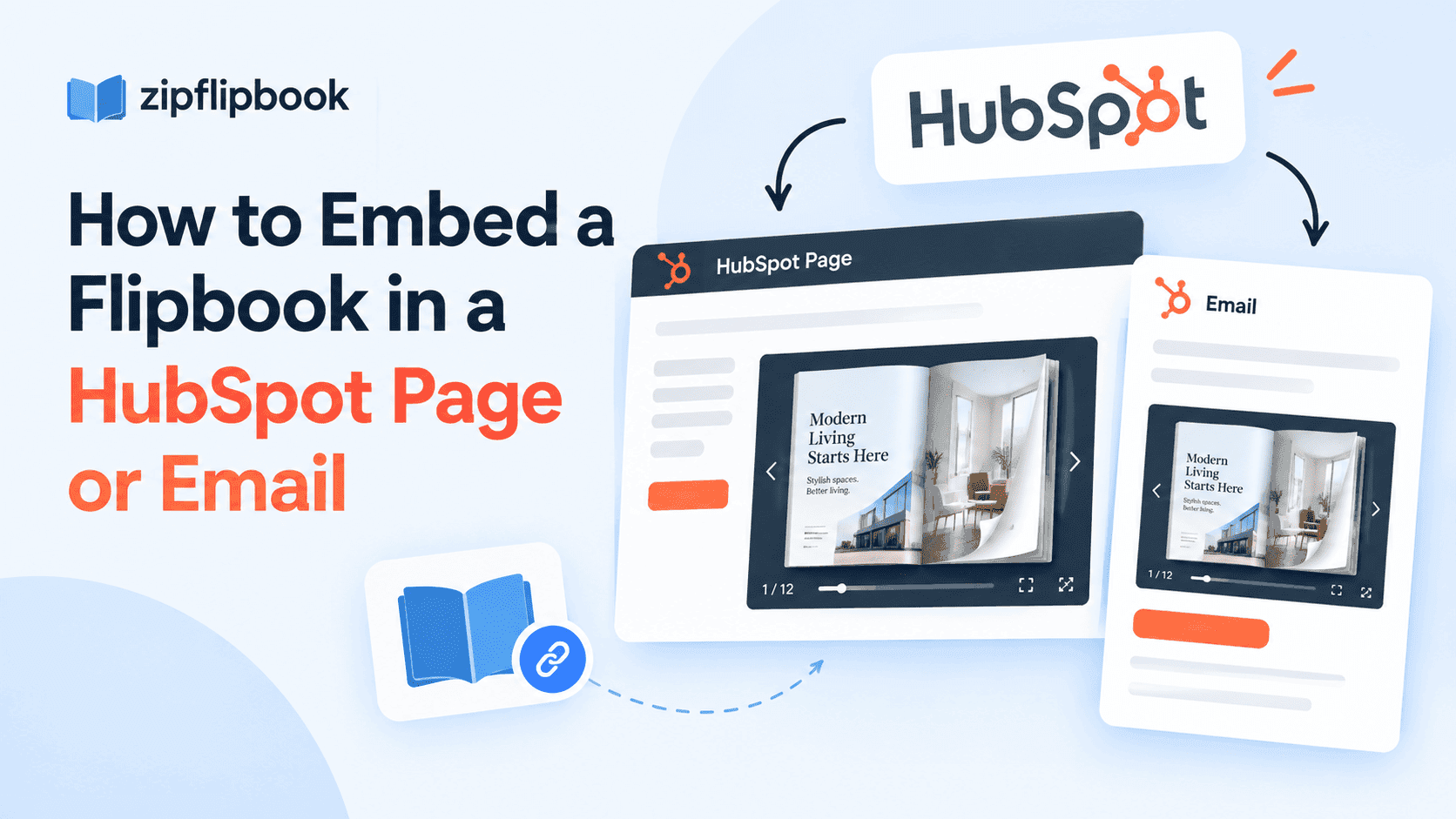
If you've uploaded a PDF to a HubSpot landing page, you already know what happens. You upload the file, HubSpot gives you a link, and the visitor opens a flat, zoomed-out document in a new tab. No branding, no tracking, and little reason to stay. That's a dead end, not a landing page experience.
HubSpot handles forms, workflows, and email sequences well. It was not designed to present PDFs. That's fine; it doesn't need to be. But if you use HubSpot to send proposals, catalogs, case studies, or lookbooks, linking to a raw file costs you presentation quality and engagement data. An interactive embed gives you both back.
A flipbook solves that. Instead of sending visitors to a PDF viewer, you can embed a page-flip version directly in a HubSpot page or link to it from an email. It can track opens and time spent, and it can capture leads if you enable that. The setup differs for pages and emails, so I'll cover both.
Why Native PDF Uploads in HubSpot Fall Short
HubSpot's file manager can host a PDF. It won't make that PDF interactive, page-flip responsive, or trackable beyond a basic "file downloaded" event. On a phone, readers have to pinch and zoom through tiny text. On desktop, they see a generic document viewer that doesn't match your branded HubSpot page.
Tracking is another gap. HubSpot can tell you a file was clicked. It can't tell you which page someone read, whether they reached the pricing page in a sales deck, or whether they clicked a link on page 12. If you score leads by engagement, which is the main purpose of HubSpot's marketing tools, a flat PDF gives you almost nothing to work with. We cover this in more detail in our guide to tracking PDF opens for free. The short version: static files are a black box.
Turn Your PDFs into Lead Generation Machines
Start getting highly-qualified leads from your PDFs and landing pages today. It takes exactly 2 minutes to set up.
No credit card required • Sign up in 10 seconds
Turning Your PDF Into an Embeddable Flipbook
You need the flipbook before you can embed it in HubSpot. Upload your PDF to ZipFlipbook, and it converts into a page-flip document with an embed link and iframe snippet. No design work, plugins, or watermark. This is the same process we cover for other platforms in our guide on embedding a PDF into your website. HubSpot's embed mechanics are similar once you know where to paste the code.
Once the flipbook is live, you have two options: a shareable link and an iframe embed code. Which one you use depends on whether you're working in a HubSpot page or email. They behave differently, and using the same approach for both is where most people get stuck.
Embedding in a HubSpot Landing Page or Website Page
HubSpot's drag-and-drop editor has modules for this, and the setup is straightforward.
- Open the page in the HubSpot content editor. For a landing page or website page, drag a "Rich Text" or "Custom HTML" module into the section where the flipbook should appear.
- Switch to source/HTML view. In the Rich Text module, click the "Source code" button, which looks like
< >. If you're using a Custom HTML module, you're already in code view. - Paste your ZipFlipbook iframe embed code. It will look like
<iframe src="https://zipflipbook.com/embed/your-flipbook-id" width="100%" height="600"></iframe>. Set width to 100% so it fills the column, and set height to fit your layout. 600 to 800 pixels works for a standard catalog or brochure. - Preview before publishing. HubSpot's preview mode shows the live embed. Check the mobile preview too. If your theme has unusual proportions, you may need to add a max-width style to the iframe.
- Publish and test on a real phone, not just HubSpot's mobile preview. A real device catches issues the preview misses, such as a flipbook that is technically responsive but still awkwardly small inside a narrow content column.
That's all you need: no developer, no HubSpot API calls, no custom module purchase. If your HubSpot instance restricts Custom HTML modules by user permission, which some Marketing Hub tiers do, use the Rich Text source code route instead.
Embedding in a HubSpot Email
Email is trickier. Most email clients strip out iframes entirely. Gmail, Outlook, and Apple Mail treat iframes as a security risk and won't render them. The embed code that works on your landing page may show up as a blank box, or not at all, in an email.
The standard method is how email marketing has worked for years: use an image as the visual hook and link it to your flipbook.
- Download a cover image for your flipbook. ZipFlipbook generates a thumbnail automatically, usually the first page, which you can use as your email graphic. If you want something stronger than a plain first page, design a quick cover with a "Click to view" overlay.
- In the HubSpot email editor, drag an Image module into the spot where you want the flipbook preview.
- Set the image's click-through URL to the flipbook's shareable link, not the iframe embed code. This is the step people often reverse. They paste iframe HTML into an email module and wonder why it breaks. The link belongs on the image.
- Add a text CTA below it, such as "Flip through the full catalog" or "Open the interactive brochure." Don't rely on the image alone to show it's clickable. Many recipients have images blocked by default, especially on first opens.
- Send test emails to yourself across Gmail, Outlook, and the clients your recipients use most. Confirm the image loads and the link opens correctly.
We cover this image-plus-link pattern in more detail in our post on embedding a flipbook in an email campaign, including variations for newsletter layouts and one-off sends. The mechanics are the same whether you send through HubSpot, Mailchimp, or Gmail. Email does not allow live embeds.
Turn Your PDFs into Lead Generation Machines
Start getting highly-qualified leads from your PDFs and landing pages today. It takes exactly 2 minutes to set up.
No credit card required • Sign up in 10 seconds
Why This Combination Actually Helps Your Funnel
Beyond appearance, this matters because HubSpot is built for scoring and segmenting based on behavior. A flipbook link that opens ZipFlipbook's analytics gives you page-level engagement data you can add to HubSpot workflows manually. You can note which leads spent real time in a proposal and which left after page one. It won't sync automatically into HubSpot's native lead scoring without manual tagging or a Zapier bridge, but reviewing that data before a sales call is better than going in blind.
If your flipbook includes a lead-capture gate, such as an email field before someone can view a pricing sheet, you get a second data point separate from your HubSpot form fills. Someone who filled out your HubSpot form to join your list and then gave their email again to unlock a flipbook is showing stronger intent than a single form submission does.
Turn Your PDFs into Lead Generation Machines
Start getting highly-qualified leads from your PDFs and landing pages today. It takes exactly 2 minutes to set up.
No credit card required • Sign up in 10 seconds
A Few Things to Double-Check Before You Ship This
These small mistakes cause most of the "why isn't my flipbook showing up?" support questions we receive:
- Don't paste the iframe code into an email. It will not render. Use the image-plus-link method for email every time.
- Set explicit height values on landing page embeds. Leaving height on "auto" can cause HubSpot's responsive columns to collapse the iframe to zero pixels tall.
- If you're on Enterprise with strict CSP settings, check your HubSpot theme's content security policy. Some instances block third-party iframes by default, and an admin may need to allow the ZipFlipbook domain.
- Re-test after any theme update. HubSpot pushes theme changes that can alter how modules render. An iframe that worked in March can look broken in September.
None of this is complicated once you've done it once. The confusion usually comes from treating pages and emails as the same problem. They are two different embed strategies with the same "flipbook" label. Put the iframe on your pages and use the image-link pattern in your emails. The result looks much more polished than a plain PDF link, and it requires only copy-and-paste code.