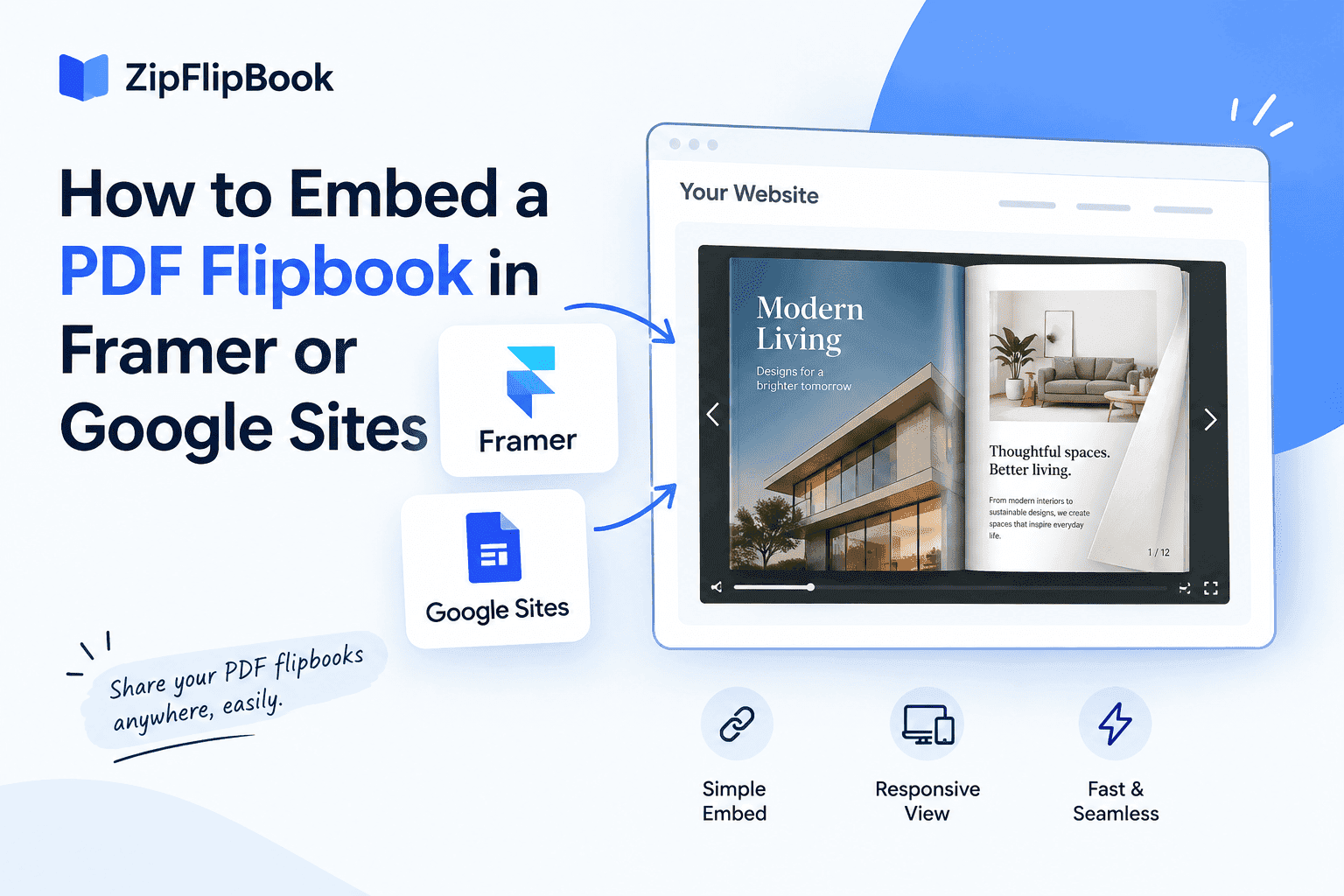
Embedding a PDF flipbook on a website builder like Framer or Google Sites is awkward, mostly because neither platform was built with "drop in a document" in mind. Framer is primarily a design tool, not a document host. Google Sites is common because it is free and simple, not because it handles embedded documents well. Neither platform has a native insert-PDF option, so searching for one wastes time.
The process below covers both platforms.
Why "just upload the PDF" doesn't work
Most people try dragging the PDF onto the page and publishing it. On Framer this technically works but produces a plain download link. Click it, and the file dumps into a new tab or straight into the visitor's downloads folder. There is no page-turn, zoom, or deliberate viewing experience. On Google Sites it's worse: you can attach a file, but there's no native inline PDF viewer at all. Visitors get a generic file icon and a click-to-open prompt that looks dated.
Neither of these is a flipbook. A flipbook adds page-turn animation, a clickable cover, and embedded media or calls to action. A raw file upload does not provide those features on either platform.
The fix is the same on both: convert the PDF into an embeddable flipbook first, then drop the embed code into the page. The remaining questions are how to get an embed code and where to paste it, and those two questions have different answers depending on which builder you're using.
Step one: turn the PDF into a flipbook
Upload your PDF to ZipFlipbook. It's free, browser-based, and provides an embed code without requiring a credit card. The conversion takes a minute or two depending on file size, and once it's done you get a shareable link plus an embed snippet, along with basic analytics on opens and reading depth.
If you're coming from a static catalog or brochure and you've never made one of these before, read what an interactive brochure actually is before you build one. The term is used loosely, and it helps to know what you're aiming for — page-flip animation, embedded media, lead capture forms, versus just a PDF that opens in a new tab and someone called it interactive.
Once your flipbook exists, you'll have two options for getting it onto a page: an iframe embed code, or a direct link you can point a button at. Both platforms below support the iframe approach, though Google Sites requires an extra step to get there.
Turn Your PDFs into Lead Generation Machines
Start getting highly-qualified leads from your PDFs and landing pages today. It takes exactly 2 minutes to set up.
No credit card required • Sign up in 10 seconds
Embedding in Framer
Framer is easier because it has an embed component designed for custom code.
Step 1: Add an Embed component. Open the page you want the flipbook on, and from the insert panel (the plus icon, or hit "I" on your keyboard) search for "Embed." Drag it onto the canvas wherever you want the flipbook to sit — this could be a dedicated page, a section of your homepage, or a product page if you're showing off a catalog.
Step 2: Paste your embed code. ZipFlipbook gives you an iframe snippet that looks something like <iframe src="https://zipflipbook.com/view/your-flipbook-id" width="100%" height="600"></iframe>. Paste the whole thing into the Embed component's code field. Framer will render it live in the canvas, so you should see the flipbook appear almost immediately.
Step 3: Fix the sizing. Sizing is the common problem. Framer's default embed size rarely matches a flipbook. Flipbooks are usually wider than they are tall, and if you leave the embed at whatever height Framer assigns by default, you'll end up with a flipbook that's either cropped or surrounded by empty space. Go into the layer settings for your Embed component and set a fixed height between 500 and 700 pixels for most page dimensions, and set the width to "fill" so it stretches to match its container on both desktop and mobile.
Step 4: Check responsiveness. Framer's breakpoint system means your desktop layout doesn't automatically translate to mobile. Switch to the mobile preview and check that the flipbook embed isn't overflowing its container or getting squeezed into an unreadable strip. If it is, adjust the height value specifically for the mobile breakpoint. Framer supports different values per breakpoint.
Step 5: Publish and test on a real phone. Test on a real phone, not just the browser's mobile simulator. Simulators can misrepresent scroll behavior and iframe rendering.
Iframes add page-load cost because they load a second page inside your page. If speed or SEO matters, read how to embed a flipbook without slowing your site down, since a couple of the lazy-loading tricks in there apply directly to Framer's embed component.
Embedding in Google Sites
Google Sites is built for simplicity. That works well until you need to embed a third-party interactive document. It is still possible, and once you've done it once it takes about ninety seconds.
Step 1: Open the "Embed" insert option. In the Sites editor, click "Insert" in the right-hand panel, then choose "Embed." You'll get two tabs: one for pasting a URL, and one for pasting embed code directly.
Step 2: Use the "Embed code" tab, not the URL tab. The URL tab is designed for embedding entire webpages by address, and Google Sites is picky about which domains it'll actually render that way — a lot of third-party tools get silently rejected or show a broken preview. The "Embed code" tab accepts a raw iframe snippet. Paste your ZipFlipbook iframe code there.
Step 3: Resize the embed box. Google Sites gives you drag handles around the embedded element once it's placed, similar to resizing an image. Drag the corners until the flipbook has enough space. If it is too small, pages are cramped; if too large, it dominates the page. There is no numeric input, so adjust visually.
Step 4: Preview before publishing. Google Sites has a preview mode (the eye icon at the top) that shows both desktop and mobile views. Because Sites uses a fairly rigid column-based layout system, the flipbook embed sometimes renders differently across breakpoints than you'd expect from the editor view. Check both.
Step 5: Publish. Click "Publish" in the top right. If you're updating an existing published site rather than launching a new one, Sites will ask whether to publish the changes now or on a schedule. For a straightforward embed addition, just publish now.
If you're specifically running a Google Sites page for a business — a lot of small operations end up there because someone on the team already had a Google Workspace account and it was the easiest option — the PDF embedding basics post covers some general troubleshooting that applies here too, particularly around iframe permissions and mixed-content warnings that can crop up on sites still running partial HTTP resources.
What actually goes wrong
A few problems are common on both platforms, and they're worth flagging before you hit them yourself.
Blank embed box, nothing rendering. This is usually a copy-paste error. You grabbed part of the iframe code but not all of it, usually missing the closing tag or a stray character got dropped when copying from an app that auto-formats quotes. Copy the whole snippet directly from ZipFlipbook and don't retype any part of it by hand.
The flipbook loads but looks tiny or cut off. This is almost always a height issue, not a width issue. Both Framer and Google Sites tend to default to a container height that's too short for a document viewer. Go back and manually increase it. Overshooting slightly is fine; the flipbook's internal aspect ratio will settle into the space.
It works on desktop, breaks on mobile. Iframes don't automatically become responsive just because the page around them is. If your flipbook is unreadable or badly scaled on a phone, check whether ZipFlipbook's embed has a mobile-optimized mode. Most modern flipbook embeds do, but it sometimes needs to be toggled on in the sharing settings rather than assuming it is on.
Slow load times. Related to lazy loading — if your flipbook sits below the fold, there's rarely a reason for it to load the instant the page opens. Both platforms support some form of lazy-loading for embeds, though the implementation differs, so check your specific builder's documentation rather than assuming.
Is it worth the extra steps compared to just linking out?
Some people will read all of this and think, why not just link to the flipbook and let people click through to view it on ZipFlipbook's own hosted page? That approach can work. Linking out is simpler, and it works fine if the flipbook is more of a supporting document than the centerpiece of the page.
But embedding it directly keeps visitors on your site, which matters. Every click-through to an external domain is a chance for someone to lose their place, get distracted, or leave entirely. If the flipbook is your product catalog, your portfolio, or the main content, embedding it where they already are — on your Framer site, on your Google Site — removes a step between "interested" and "engaged." That is the purpose of the page.
It also looks more finished. A flipbook that opens seamlessly inside your existing site design reads as intentional. A flipbook that sends visitors to a different domain with a different layout can seem like an afterthought, even if the content inside is identical.
Turn Your PDFs into Lead Generation Machines
Start getting highly-qualified leads from your PDFs and landing pages today. It takes exactly 2 minutes to set up.
No credit card required • Sign up in 10 seconds
The short version
Convert the PDF into a flipbook first. Neither Framer nor Google Sites handles a raw PDF gracefully. Grab the iframe embed code. On Framer, drop it into an Embed component and fix the height and width manually. On Google Sites, use the "Embed code" tab, not the URL tab, and drag-resize the box. Check mobile before you publish, not after. If speed or SEO matters, lazy-load the embed instead of loading it eagerly on page open.
The process is straightforward after the first time, but neither platform makes the option obvious. Both bury it a click or two deeper than expected.