Most PDFs are dead on arrival. You export the file, send it off, and it just sits there — a flat, static rectangle that few people scroll past the first page of. No clicks, no video, no way to know if anyone even opened it. A proposal or catalog sent this way tends to go quiet, and the sender never finds out whether it was ignored or just never opened.
An interactive version doesn't have that problem. Same document, but now people can click through it, watch a video embedded in the page, fill in a form, jump to a section from a table of contents, or land on your booking page without you chasing them by email. The content does some of the selling instead of just sitting there.
The right method depends on where you're starting — an existing PDF you want to bolt features onto, a design you're building from scratch, or something you just want turned into a working flipbook without touching software you've never opened before. Below are all three, plus a few real examples of what "interactive" looks like when it's more than a buzzword.
What actually makes a PDF "interactive"
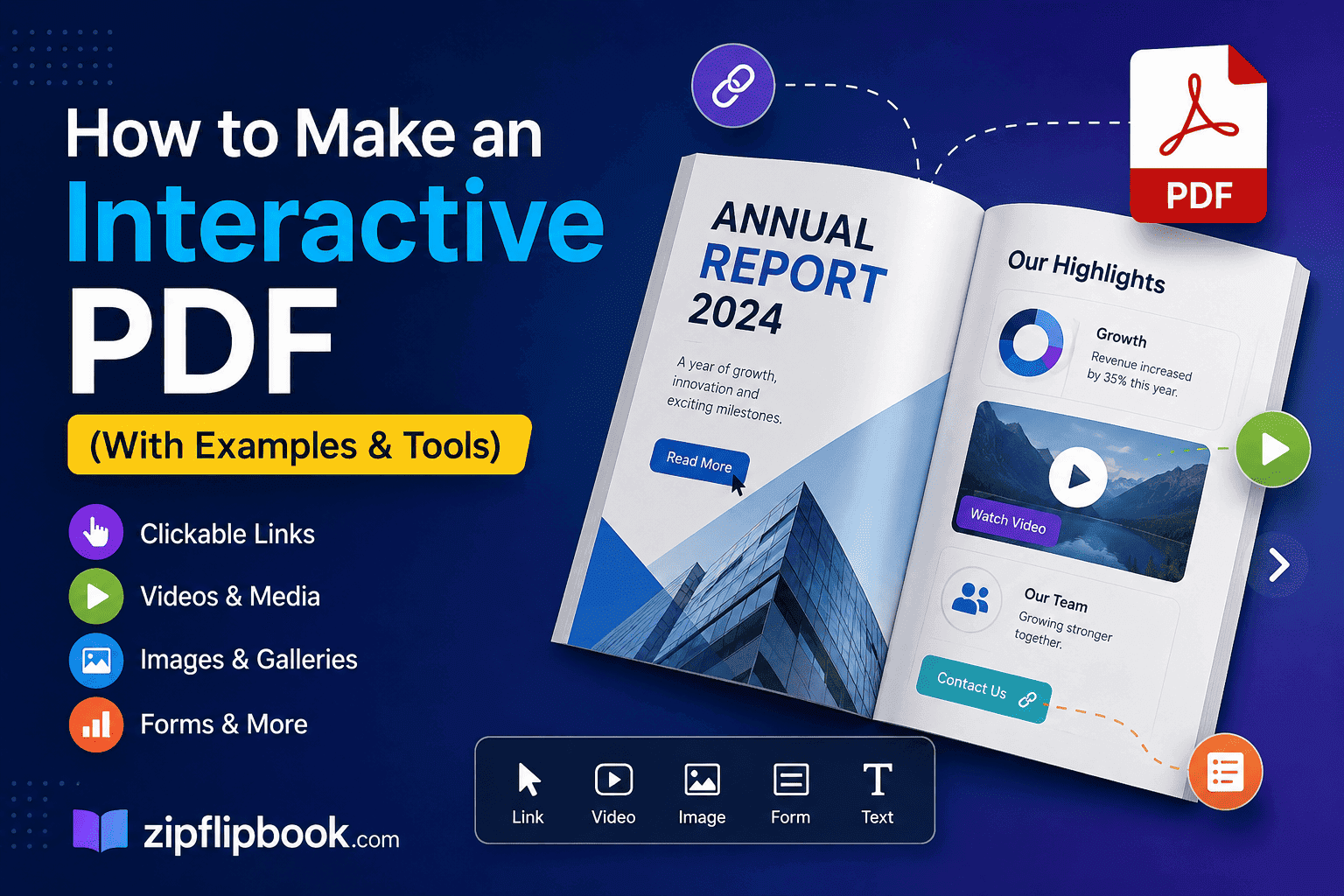
People throw the term around loosely, so let's be specific. An interactive PDF has at least one of these:
- Clickable links (internal jumps to other pages, or external links to your site)
- Embedded video or audio that plays inside the document
- Forms — text fields, checkboxes, dropdowns — that a reader can fill in
- Buttons that trigger an action, like opening a page or submitting a form
- A table of contents you can click to jump around instead of scrolling blind
The more useful version of this — and the one most businesses actually want — goes a step further and turns the whole thing into a flipbook-style experience with page-turn animation, embedded lead capture forms, and analytics on who opened it and how far they got. That's a different tier from "I added a hyperlink in Acrobat," and it's the one that actually moves a sale forward.
Method 1: Adobe Acrobat Pro (the manual route)
If you already have a PDF and just want to bolt on some basic interactivity — links, form fields, a couple of buttons — Acrobat Pro's Prepare Form tool will get you there. You draw a field, tell it what type it is, set validation rules if you need them, and export. It works fine for internal documents, simple order forms, or anything that just needs to function rather than impress.
Acrobat's tools hit a wall where the PDF format does, though. No page-turn animation, no embedded video that autoplays cleanly across devices, no lead capture that reports back to you. Most people opening your file on a phone will be pinching and zooming instead of getting a proper mobile layout. It adds function to a PDF; it doesn't turn it into an experience.
Method 2: InDesign for interactive layouts
If you're designing a catalog or brochure from scratch, Adobe InDesign lets you build interactivity directly into the layout — buttons, page transitions, embedded media, hyperlinks — all before you ever export to PDF. We've gone deep on this exact workflow in our guide to making an interactive brochure in InDesign, including which export settings actually preserve the interactivity instead of flattening it.
The trade-off here is skill and software cost. InDesign has a real learning curve, and if you're not already a designer, building a properly interactive layout from a blank canvas is a slow way to spend an afternoon.
Method 3: Skip the PDF limitations entirely and use a flipbook tool
This is the route most small businesses end up on, because it doesn't ask you to learn new software or rebuild anything. You take the PDF you already have — the one InDesign, Canva, or Word already spat out — and upload it to a tool that converts it into an interactive, embeddable flipbook. The page-turn animation, mobile responsiveness, and lead capture come built in; you're not assembling them by hand.
This is what ZipFlipbook does, and it's free. Drop in your PDF, and it comes out the other side as a flipbook you can embed on your site, with:
- Page-turn animation that actually feels like flipping through a real catalog
- Embedded video and clickable links that work the same on a phone as they do on a desktop
- Lead capture forms built into specific pages, so someone reading page 4 of your brochure can hand over their email without leaving the document
- Analytics showing who opened it, how far they got, and where they dropped off — something we cover properly in how to track PDF opens for free
If you already have a designed PDF and just want it doing something useful, this is the fastest route from static file to something that pulls its weight. We wrote a full walkthrough on turning a static PDF into a brochure like this if you want the step-by-step: how to turn any PDF into an interactive digital brochure.
Examples of interactive PDFs done right
Real estate brochures. A flat spec sheet with a floor plan and some photos gets ignored. Add a video walkthrough on the first page, a clickable "book a viewing" button, and a form that captures the buyer's email before they scroll further, and suddenly the document is doing part of the agent's job for them. There's more on this specific case in our guide to digital property brochures for real estate agents.
Product catalogs. Retailers who still email out static PDF catalogs are leaving a lot on the table — no way to know which products people actually looked at, no embedded "buy now" links, no video demos. We break down what changes when you move up from a basic flipbook to something built for actual retail volume in why retailers outgrow basic flipbook software.
Lead magnets and gated content. An interactive PDF with a form embedded partway through — rather than a hard paywall up front — tends to convert better because people have already invested time reading before they're asked for anything. We've written about how to structure that trade-off properly in how to gate content without losing leads.
Video and forms are where interactive PDFs earn their keep
The single biggest lift in engagement usually comes from embedded video, not from a clever hyperlink. A product demo playing inline, rather than linked out to YouTube, keeps someone inside your document instead of handing them an excuse to tab away. We cover the mechanics of doing this properly in how to embed video in a digital brochure and add video to digital brochure.
Lead capture is the other half of the equation, and it's the part most people skip because it feels like extra work. It isn't, if the tool handles it for you — you place a form on the page where interest naturally peaks (end of a product spread, after a case study, wherever) and let it collect emails while you're doing something else. If this is new territory, how to collect leads with PDFs using ZipFlipbook walks through the setup end to end.
Don't forget accessibility
An interactive PDF that a screen reader can't parse, or that fails contrast requirements, isn't actually finished — it's just interactive for some of your audience. This matters more than most guides mention, and if you're distributing to a wider audience or you're in a sector where compliance isn't optional, it's worth reading the complete guide to making your digital flipbooks and PDFs ADA compliant before you publish anything at scale.
Where to start
If you're building from nothing and have design chops, InDesign gives you the most control. If you need form fields on an internal document, Acrobat is fine and free-ish if you already have it. But if you've got a PDF sitting on your desktop right now — a catalog, a proposal, a brochure — and you just want it to stop being ignored, upload it to ZipFlipbook and see what it looks like as a flipbook. It's free, it takes about the same time as attaching a file to an email, and unlike a plain PDF, you'll actually be able to see who opened it.